Loading...
Loading...
Loading...
Loading...
Loading...
Loading...
Loading...
Loading...
Loading...
Loading...
Loading...
Loading...
Loading...
Loading...
Loading...
Loading...
Loading...
Loading...
Loading...
Loading...
Loading...
Maximize your app’s revenue and engagement effortlessly with Playtime - adjoe’s mobile-apps-centric rewarded ad unit for Android and iOS. Integrate it within your app, and start rewarding users with your in-app currency for using advertized mobile games and apps.
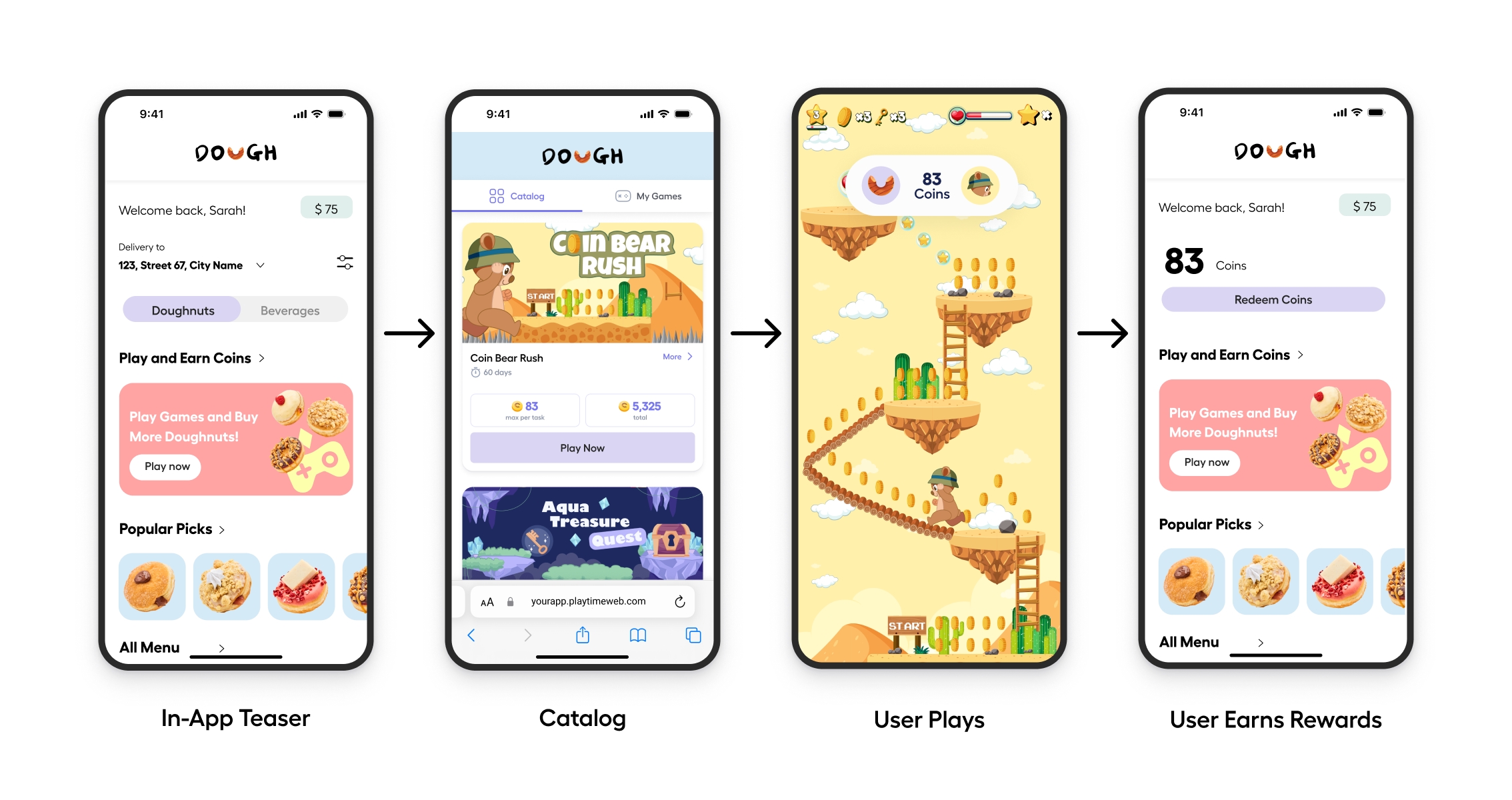
We offer a native SDK solution for Android and iOS, as well as a web-based option for iOS. Playtime seamlessly integrates with our Reporting APIs, allowing you to track your KPIs, monitor Playtime's performance, and achieve your revenue targets. Select your preferred platform and get started!
Playtime SDK for AndroidPlaytime SDK for iOSPlaytimeWeb for iOSUser Ad Data Report APIRevenue APIMaximize your app’s revenue and engagement effortlessly with the Playtime SDK, adjoe’s mobile-app-centric rewarded ad unit. Integrate it within your app, and start rewarding users with your in-app currency for playing advertised mobile games and apps.
Playtime taps into your users' love for gaming and mobile engagement, offering you industry-leading eCPM and engagement metrics in return. To learn more about how adjoe can boost your app's monetization and retention, click here.
Android 16+
Gradle 7.2.2+
minSdkVersion 21+
compileSdkVersion 23+
Starting June 30th, 2025, version 3.0.0 is the minimum supported version of the Playtime SDK.
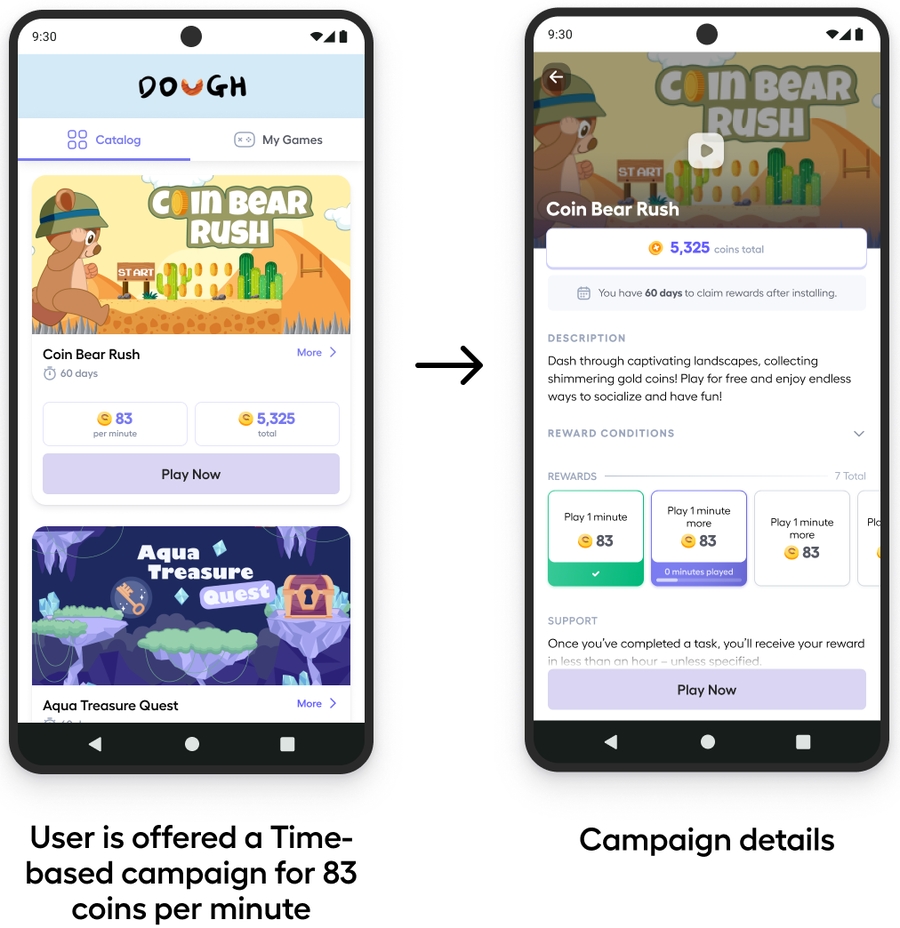
Rewards users for the time they spend in the advertised app, e.g. Earn 50 coins per minute for playing a game.
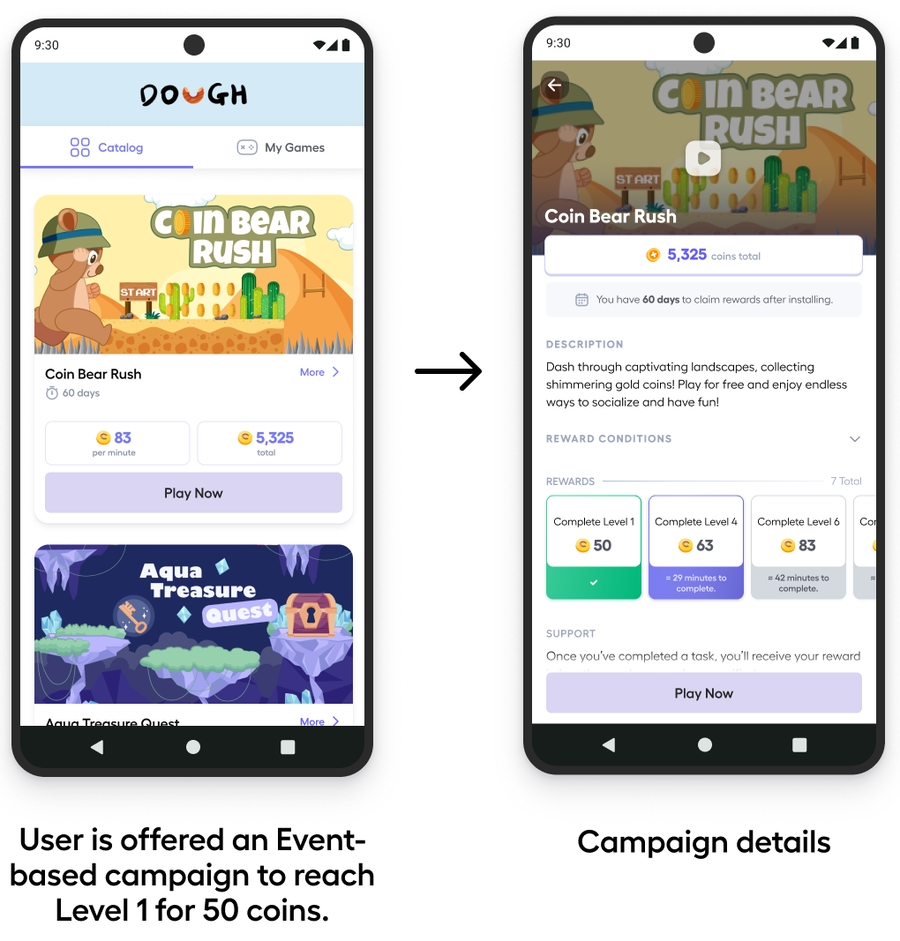
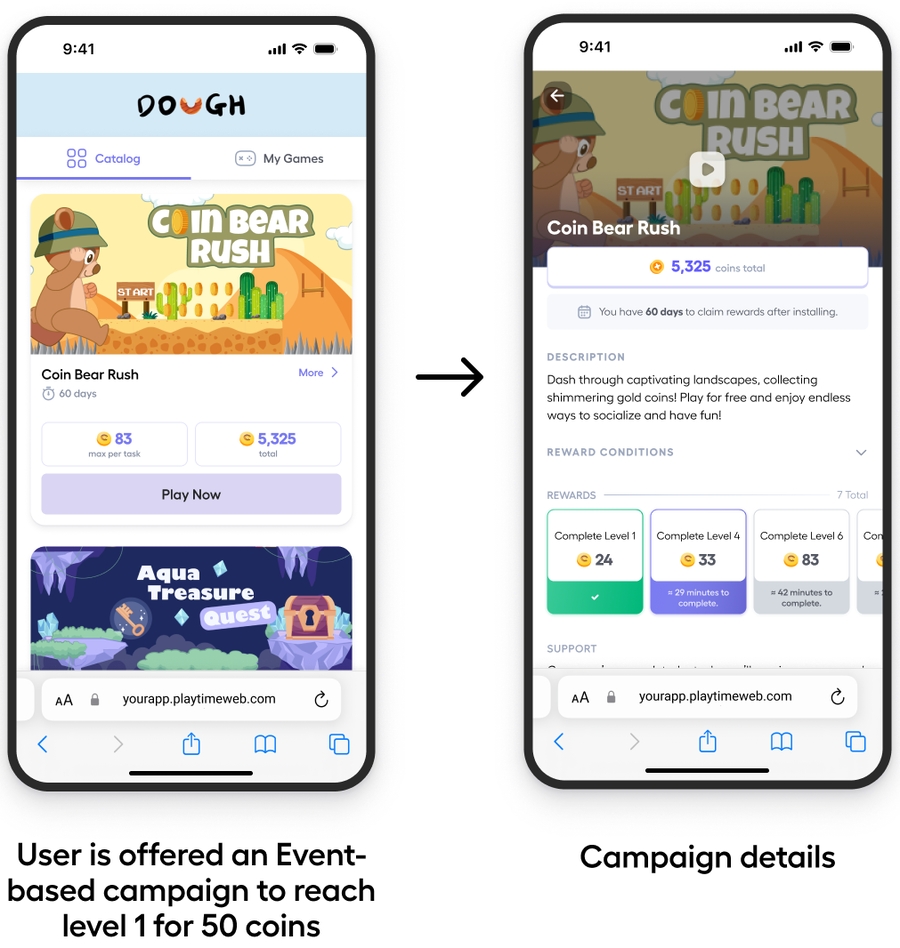
Rewards users for achieving a designated combination of events within advertised apps, e.g. in-app purchases, viewing video ads, reaching specified game levels or signing-up for app. Users are rewarded after completing each task. Example: "Up to 5 Coins per Task" or "Complete Level 10", "Make first transfer".
v1.9.0
v1.8.0
v1.7.0
Published: July 23rd, 2025
Features and Improvements ✨
Support auto-initialization.
Add Swift package manager (SPM) support.
Minor bug fixes.
Published: June 10th, 2025
Features and Improvements ✨
Support subId parameters that can be passed to showCatalog.
Published: May 15th, 2025
Features and Improvements ✨
Support Playtime APIs on Native iOS and React Native
Solve any SDK issues quickly with this guide, covering common errors and setup problems.
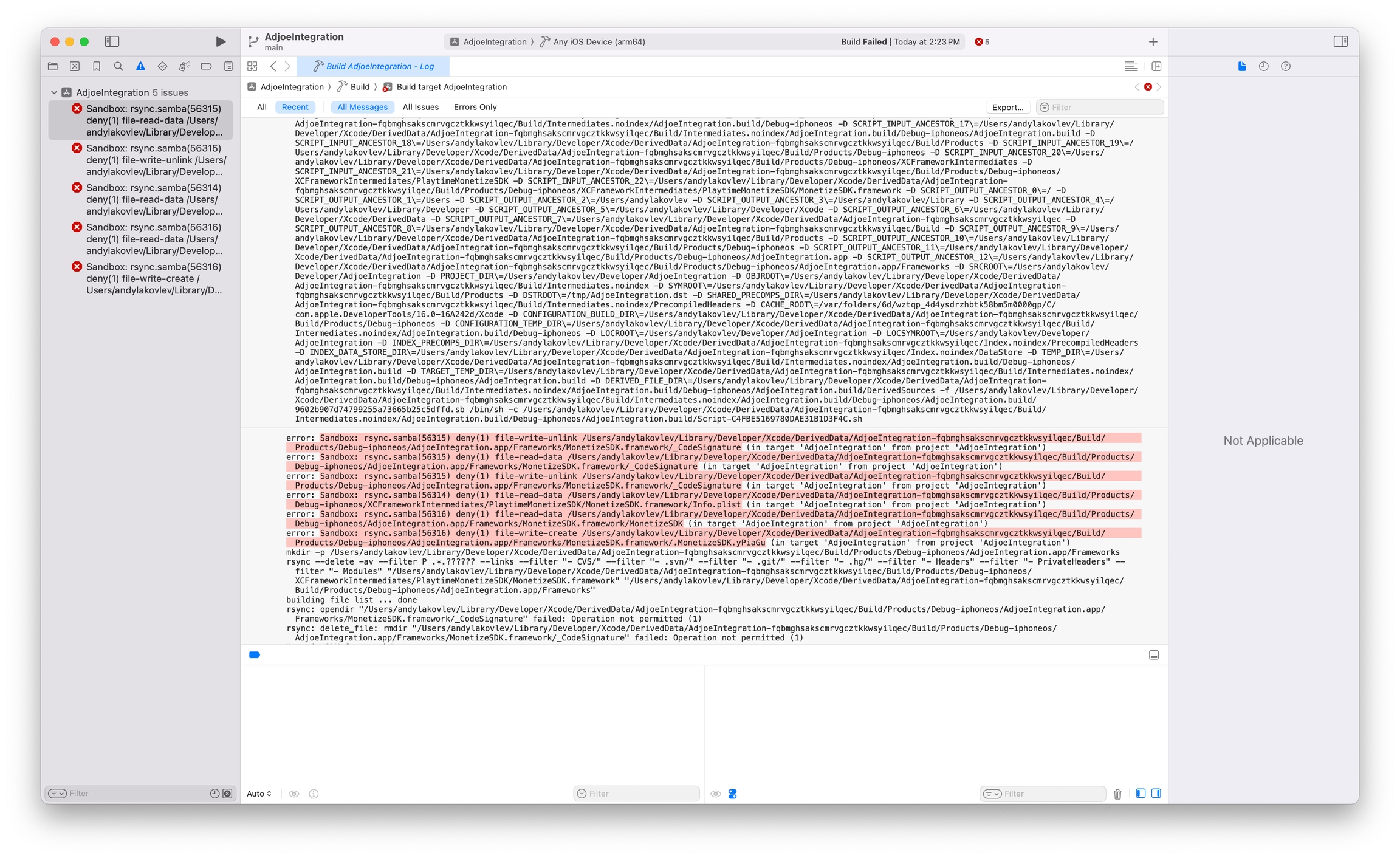
If you see this Sandbox: rsync error while building the app, check the steps below on how to solve this:
Select the project of your application in the Project Navigation:
Select your target
Go to Build Settings
Find the Build Option User Script Sandboxing
Set the value to NO.
General setup
Access to Playtime Publisher Dashboard confirmed
Server endpoint prepared on your servers for S2S payouts
The s2s_token for S2S payouts received from Account Manager
The sid verified and matches the parameter sent in the callback from adjoe
S2S payouts contain all desired parameters
IP-Level blocking implemented
Separate adjoe app IDs are used for production and non-production environments
(optional) Playtime customizations applied
(optional) Ad data report received via API
(optional) Revenue report retrieved via API
Playtime SDK for Android Only:
Test devices registered with correct GAIDs
Playtime SDK Dependency integrated into app
SDK initialized at app start without errors
SDK is re-initialized upon the app going into foreground (in onResume or didChangeAppLifecycleState
Playtime SDK for iOS only:
Test devices registered with correct IDFAs
Playtime SDK Dependency integrated into app
App Attest Integrated
Private Key and App ID sent to adjoe
PlaytimeWeb only:
Redirect URL successfully integrated into app
Catlog loads without errors
All desired parameters included in URL
Installed games appear in "My Apps" section
Server endpoint for S2S payouts verified and tested. Successful payouts are confirmed
All desired visual customizations applied
(optional) Application rollout initiated with a small percentage of users
Maximize your app’s revenue and engagement effortlessly with the Playtime SDK, adjoe’s mobile-app-centric rewarded ad unit. Integrate it within your app, and start rewarding users with your in-app currency for playing advertised mobile games and apps.
Using the Playtime SDK, you can tap into your users' love for gaming and mobile engagement, offering you industry-leading eCPM and engagement metrics in return. To learn more about how adjoe can boost your app's monetization and retention, click here.
Minimum version to use the SDK's functionality: iOS 14.0
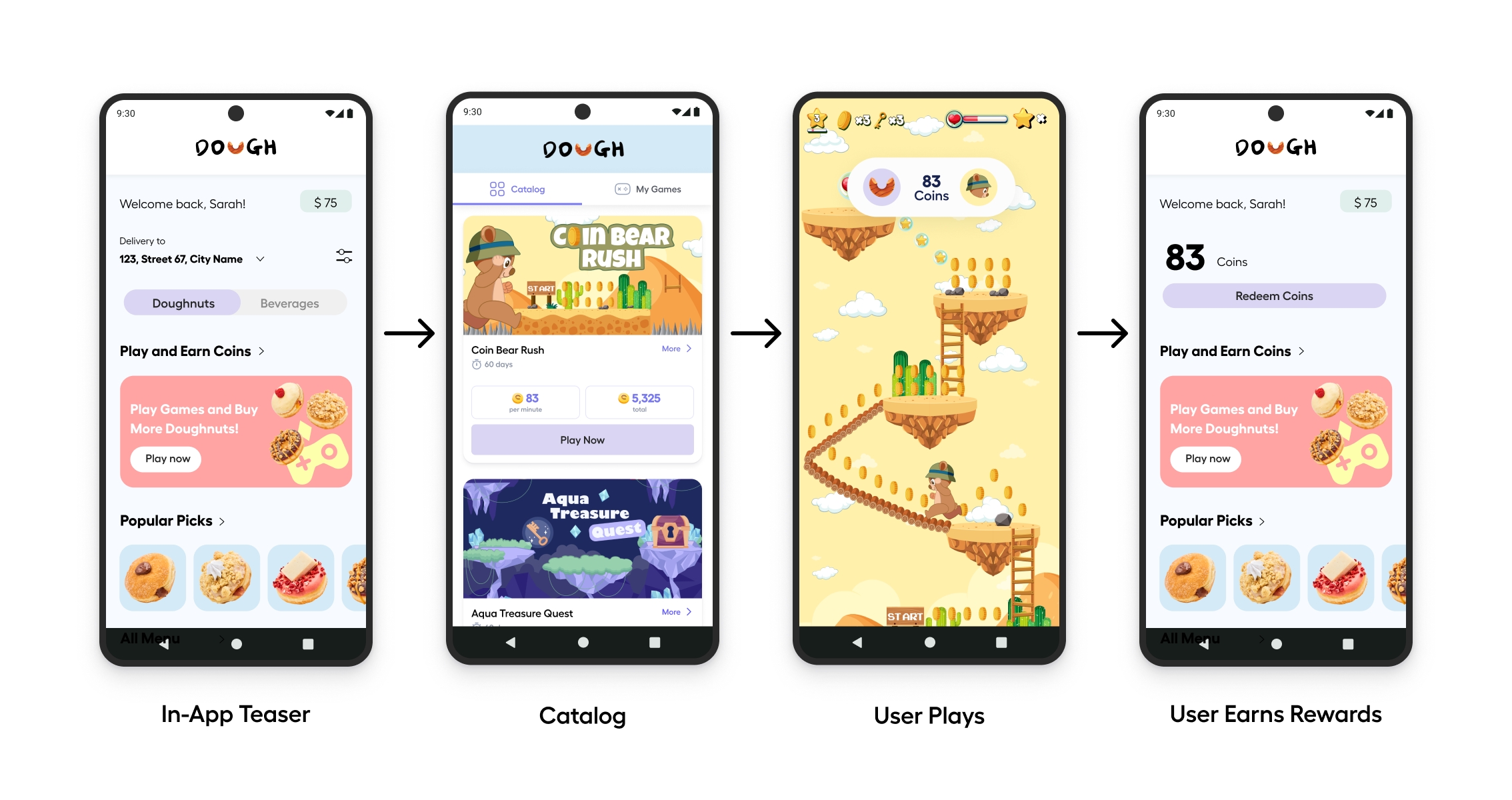
Playtime Catalog launch setup completed
Logs enabled (Native only)
Catalog listener set up (Native only)
Playtime Catalog launch setup completed
Uninstall the app containing the SDK. Ensure its data is also removed from any automatic backups.
Reset your GAID: Go to Settings > Google > Ads and tap on Reset Ad-ID.
Set up your device as a test device using the new GAID.
Your device may be blocked. Proceed as described in the issue above.
Check your device's time setting; incorrect time (e.g., set to the future or past) often causes this. If the time is correct and the issue persists, contact us and we will investigate this issue.
This can happen when Gradle cannot resolve a dependency conflict, such as when two dependencies use the same transitive dependency but with different versions. To resolve this conflict you must either:
Remove one of the conflicting dependencies.
Align the versions of the conflicting dependencies to match.
If the affected dependency is one of your app's dependencies, simply adjust or remove it from the dependencies list in your build.gradle. If the affected dependency is transitive, you must exclude it from the dependency which specifies it as a transitive dependency.
Our SDK supports pre-AndroidX projects, so we are using the work-runtime library that predates AndroidX. There is an issue with the Android Gradle plugin <3.6.0 where the Jetifier does not correctly replace the dependency. If you are not already using a supported version of Gradle, you need to bump the version in your root project's build.gradle file.
Please also ensure that you have enabled the Jetifier by placing the line android.enableJetifier=true into your gradle.properties file.
If you continue to have issues due to a conflict between the versions of the androidx.work:work-runtime library in your project, you can fix this issue by adding the following to your app level build.gradle file.
The currently supported version of work-runtime is up to 2.0.1
buildscript {

    repositories {
        google()
        mavenCentral()
        ...
    }
    dependencies {
        classpath 'com.android.tools.build:gradle:3.6.0' // Set this to 3.6.0 or higher.
        ...
        // NOTE: Do not place your application dependencies here; they belong
        // in the individual module build.gradle files
    }
}configurations.all {
resolutionStrategy.dependencySubstitution {
// Substitute one module dependency for another
substitute module('android.arch.work:work-runtime:1.0.1') with module('androidx.work:work-runtime:2.0.1')
}
resolutionStrategy.force 'androidx.work:work-runtime:2.0.1'
}
dependencies {
implementation 'androidx.work:work-runtime:2.0.1'
....
}Rewards users for achieving a designated combination of events within advertised apps, e.g. in-app purchases, viewing video ads, reaching specified game levels or signing-up for app. Users are rewarded after completing each task. Example: "Up to 5 Coins per Task" or "Complete Level 10", "Make first transfer".
Maximize your app’s revenue and engagement effortlessly with PlaytimeWeb for iOS, adjoe’s mobile-games-centric rewarded ad unit. Integrate it within your app, and start rewarding users with your in-app currency for playing advertised mobile games.
Playtime taps into your users' love for gaming and mobile engagement, offering you industry-leading eCPM and engagement metrics in return. To learn more about how adjoe can boost your app's monetization and retention, click here.
Once a user meets the campaign criteria for being rewarded, it's time to initiate the payout—sending the rewards to the user. Publishers issue these payouts upon receiving a payout request callback from adjoe's backend. The request is made to the S2S API URL configured for the publisher for their SDK in the .
To enable S2S payouts, set up an endpoint on your server to receive notifications about user rewards from adjoe. When a request is made to your endpoint, you then must manage the distribution of these rewards to the users. Be aware that once a reward is distributed, it cannot be allocated again.
The key names can be customized, or you can use the default names. Please ensure that no special characters should be included in the values, otherwise our backend may transform the request, which could cause issues with the payout. Some of these values include: [] . =
Default
GET / https://example.com/example?sid={sid}&trans_uuid={trans_uuid}&user_uuid={user_uuid}¤cy={currency}&coin_amount={coin_amount}&device_id={device_id}&sdk_app_id={sdk_app_id}&app_id={app_id}&reward_level={reward_level}&app_name={app_name}&reward_type={reward_type}&publisher_sub_id1={publisher_sub_id1}&publisher_sub_id2={publisher_sub_id2}&publisher_sub_id3={publisher_sub_id3}&publisher_sub_id4={publisher_sub_id4}&publisher_sub_id5={publisher_sub_id5}&placement={placement}&ua_network={ua_network}&ua_channel={ua_channel}&ua_subpublisher_encrypted={ua_subpublisher_encrypted}&ua_subpublisher_cleartext={ua_subpublisher_cleartext}
Customized (Example)
GET / https://example.com/example?user_id={user_uuid}&sid={sid}&point_amount={coin_amount}&points={currency}&trans_uuid={trans_uuid}&ua_network={ua_network}&ua_channel={ua_channel}&playtime_placement={placement}&custom_id={publisher_sub_id1}
`Example Response URL:
https://s2sexamplerequestendpoint.com/payout?user_uuid=a79d7158-6f9c-4e5b-ae7a-98143c77d396&sid=0de7e36d2965269f172d2d89bc9a8026da7f0819&coin_amount=100¤cy=dollars&trans_uuid=e7b1a95f-8c72-4ed8-af69-ecf8d06b1d89&sdk_app_id=example.test.app&ua_network=tiktok&ua_channel=direct&publisher_sub_id1=RandomString
For security measures, a request signature is necessary to verify the authenticity of the request. It's important to calculate the sid parameter in your backend and compare it with the parameter received in the callback URL. The sid is generated as an SHA1 hash using the required query parameters and the encoding is hexadecimal. Your Account Manager will provide you with the necessary parameter, the s2s_token.
The general format for this is as follows - no other parameters are included in the calculation:
If any of the S2S payout URL parameters are missing, simply remove them from the concatenation. The order of the remaining parameters will remain the same as the above format.
For example, if sdk_app_id is not present in the endpoint URL, the sid will then be calculated as follows:
Below is an example script that shows how to calculate the sid and compare it to the value in the callback URL sent by adjoe. You would implement some version of this in your backend.
When we make payout request to publishers, we send an HTTP request from any of the following IP addresses:
To enhance security, use these IP addresses for IP-level blocking on endpoints receiving adjoe's S2S payout requests. Allow only these specific IPs access.
We have a built-in retry mechanism for failed S2S requests that return a 4xx error from your endpoint.
If a request fails, we retry after 10 minutes. A second failure prompts a retry in another 10 minutes. Subsequent failures lead to retries every 2 hours from the initial failed attempt. In total, this retry cycle spans approximately 12 hours, giving multiple chances for the request to succeed.
Follow these steps to verify the correct functioning of payouts:
Install games from the catalog, include "event-based" and "time-based" campaigns.
Play the games and complete the tasks required to earn rewards (e.g., finishing a task or playing for a specific duration).
Verify that the completed tasks are reflected in the game's reward card.
Ensure that the earned rewards, such as points, are credited to the app's wallet. For example, if you completed a task for 5 points, check that these points are available in the wallet.
Confirm that a 200 status code is logged in your records. Anything other than a 200 status code means that your endpoint has not been configured correctly to receive requests from adjoe.
If you payout with real money, we recommend that you implement KYC processes, reward cooldowns, and individual limits on the amount of rewards the user can get:
KYC or Know Your Customer: This verification process, used by businesses and financial institutions, confirms the identity of your users to prevent fraud. It involves collecting and verifying identification documents, such as government-issued IDs or proof of address, ensuring that users are who they claim to be.
Reward Cooldowns: Temporarily restrict users from receiving additional rewards after receiving one. This helps maintain fairness and prevents exploitation of the rewards system, like receiving rewards too frequently.
Individual Limits: To prevent abuse of the rewards systems, set daily limits on the amount of rewards a user can earn. For example, you might cap rewards at $50 USD per day.
Rewards users for achieving a designated combination of events within advertised apps, e.g. in-app purchases, viewing video ads, and/or reaching specified game levels. Users are rewarded after completing each task. Example: "Up to 5 Coins per Task" or "Complete Level 10".
The adjoe User Ad Data Report API allows publishers to request user data reports. The required parameter for using this API is the SSP API Token, which you can obtain from your adjoe Account Manager.
There are two steps to using the User Ad Data Report API:
Get the Report URL: Use your SSP API Token and Date to request a URL.
Download the Report: Access the URL to obtain your report.
GET https://prod.adjoe.zone/v1/ssp-api/<your_token>/user-ad-data-report/app/<your_app_id>?date=[YYYY-MM-DD]
Required values:
<your_token> - 32-character hex string provided by the adjoe Account Manager.
<your_app_id> - Android package name or iOS Appstore ID. Example: com.king.candycrush
Response: OK, Returns a JSON object with the report URL
Content-Type: application/json; charset=utf-8
Content: {"ReportURL": "https://prod-adjoe-user-ad-data.s3.eu-central-1.amazonaws.com/acbd18db4cc2f85cedef654fccc4a4d8/2020-02-01_6f2fb2d3def4f99053edab239195f146.csv"}
Response: Unauthorized "Invalid Token"
Content-Type: application/json; charset=utf-8
Content: {"error" : "invalid token"}
After obtaining the URL, download the report in CSV format. A successful download will prompt an HTTP 200: OK status, along with the CSV file. An empty file indicates no data is available yet.
Example Report 1:
Example Report 2:
Data is available daily from 2:00 UTC, covering the previous day's activities. To ensure successful API queries, initiate calls after 2:00 UTC. Access to reports is granted after your Account Manager has authorized them. For example, if your report is enabled on 2025-01-01, you can access it from 2:00 UTC on 2025-01-02. Note: Reports for periods before the enablement date, such as before 2025-01-01, are not accessible.
import hashlib
from urllib.parse import urlparse, parse_qs
def calculate_sid(user_uuid, trans_uuid, currency, coin_amount, device_id, sdk_app_id, s2s_token):
data = ''.join([trans_uuid, user_uuid, currency, str(coin_amount), device_id, sdk_app_id, s2s_token])
hashed_data = hashlib.sha1(data.encode()).hexdigest()
return hashed_data
def extract_parameters(url):
parsed_url = urlparse(url)
query_params = parse_qs(parsed_url.query)
return query_params
def compare_sids(url, calculated_sid):
query_params = extract_parameters(url)
sid_from_url = query_params.get('sid', [None])[0]
return sid_from_url == calculated_sid
# Example URL
url = "https://s2sexamplerequestendpoint.com/payout?user_uuid=a79d7158-6f9c-4e5b-ae7a-98143c77d396&sid=2477185c00a5b1ac94fdf94798798d5e846d8aee&coin_amount=100¤cy=dollars&trans_uuid=e7b1a95f-8c72-4ed8-af69-ecf8d06b1d89&device_id=9a7e993a-80b4-4c3b-832f-97a5f501e2f1&sdk_app_id=com.example.android.gamename&ua_network=tiktok&ua_channel=direct&publisher_sub_id1=RandomString"
# Extract parameters from URL
query_params = extract_parameters(url)
user_uuid = query_params.get('user_uuid', [None])[0]
sid = query_params.get('sid', [None])[0]
trans_uuid = query_params.get('trans_uuid', [None])[0]
currency = query_params.get('currency', [None])[0]
coin_amount = int(query_params.get('coin_amount', [None])[0])
device_id = query_params.get('device_id', [None])[0]
sdk_app_id = query_params.get('sdk_app_id', [None])[0]
s2s_token = " " #the s2s_token will be supplied by your Account Manager.
# Calculate SID
calculated_sid = calculate_sid(user_uuid, trans_uuid, currency, coin_amount, device_id, sdk_app_id, s2s_token)
# Compare SIDs
result = compare_sids(url, calculated_sid)
print("SID Comparison Result:", result)
sid = sha1(concatenate(trans_uuid, user_uuid, currency, coin_amount, device_id, sdk_app_id, s2s_token))sid = sha1(concatenate(trans_uuid, user_uuid, currency, coin_amount, device_id, s2s_token))3.121.65.44
18.185.166.67
52.29.52.48
UserUUID
Used by adjoe to identify the user.
External User ID
Used by the publisher to identify the user.
SDKSubID1
Sub ID 1 set in the SDK.
SDKSubID2
Sub ID 2 set in the SDK.
eCPM
in USD.
Revenue
Revenue in USD for this user on this date.
Impression Count
The number of impressions for this user on this date.
date*
date
Reports are queried by date, with only one date allowed per SDK token query. Format:[YYYY-MM-DD]
Date
Date
SDK Hash
The unique identifier to the SDK.
Platform
Android or iOS.
Package Name
Either the Android Package name or the iOS App Store ID of the SDK app.
Country Code
2-letter country code. Example: de, us, fr.
Google Advertiser ID | IDFA
A Google Advertising ID, also known as an Android ID, Android Device ID, or Android Advertising ID (AAID), is Google’s unique device identifier. The IDFA (identifier for advertisers) is a random iOS device identifier given by Apple.
Follow this guide to configure your app to work with the Playtime SDK using any of our supported wrappers.
Contact your Account Manager to get an SDK hash for your app. Or if you already have access, it can be retrieved from the Monetize Dashboard.
The SDK hash is a unique 32-character code that uniquely identifies your app within adjoe's systems. Each app receives a distinct hash. Remember to keep your hash confidential to prevent unauthorized use.
To fully test the Playtime SDK integration and access all campaign types, configure your application to be in "SandboxMode". Contact your Account Manager to have this setting enabled for your environment.
Troubleshooting:
If you do not see any apps returned or if you run into any errors after this setting is enabled, please try a fresh install.
Add adjoe's repository to your root build.gradle (project level):
Add the adjoe dependency to your app's build.gradle (module level):
If you use Kotlin DSL for adding dependencies, add the repo in the settings.gradle.kts
You have an option to integrate the dependencies via Groovy or Kotlin. To understand the differences of integrating dependencies via these platforms, refer to the .
Enabling logging per device within the SDK is crucial for troubleshooting. Turn on logging and include the logs with any bug reports to help us accurately replicate and address issues.
Here’s how to enable logging:
Connect the device to your computer and enable ADB.
In a terminal window, run the following command to activate logging:
You can now filter LogCat using the Playtime tag to monitor relevant log output. If you wish to disable logging, simply execute the command:
This sets the logging level to ERROR, effectively reducing the verbosity of the logs.
Is it necessary to provide the userId at app start-up with the init method?
No. Since the init method should happen at app start-up, there are circumstances where you don’t yet have this data. For example, if the user hasn’t signed in yet. In these cases, it’s still critical to init at the app start up, but you can pass in the UA Params or User ID in an OnResume / AppState / didChangeAppLifecycleState function when you have the data.
Remember that the userId is critical for doing S2S payouts, without it your users will not be able to get their rewards. It is also important to note that whatever the last supplied userId was is what will be sent in the S2S payout URL. Therefore, the last supplied User ID was is what will be sent in the S2S payout URL.
Do I need to do anything with the Playtime SDK after the user logs out?
No. But if the user can only access the Playtime Catalog after logging-in, then you should remove any calls to init when they log out.
What is the size of SDK?
SDK size depends on the wrapper, but it is roughly <0.5MB.
Can I show the adjoeActivity in a Fragment?
No, this is not supported.
How often is the SDK updated?
The SDK is updated every couple of months. Please keep an eye out on our .
What kind of data does the SDK track? I need to share this information with the Google Play Store.
All of the data that we collect can be found in the AndroidManifest.xml of the SDK.
How do users know that they are able to receive a reward?
For Android users, we show a toast message on the top of the screen whenever a user is able to receive a reward.
I'm not seeing campaigns/games in the catalog?
The most common reason this happens is because of VPN usage. If you use a VPN, you might not see any campaigns, even if you set yourself as a test user. We still filter out IP addresses that are anonymous.
After playing some time-based reward games, I stopped receiving rewards after 15 mins. Why?
It can happen because you stopped progressing through the game. To fix this, please keep playing and progressing through the game.
What's the difference between time-based and event-based campaigns?
We have more information about this in our docs. Please refer to them .
What is the use of the GAID?
We use GAID to identify users. We provide these data to so they can count attribution.
Why does the user need to accept Access to Advertising Info?
We have more information about this in our docs. Please refer to them .
What are the benefits of using Playtime SDK vs PlaytimeWeb?
Improved Anti-fraud protection for iOS
Feature parity with Android SDK
Stronger margin protection
Native offerwall rendering for better UX and performance
I'm interested in switching from PlaytimeWeb to the Playtime SDK - what would that process look like?
Any user created via PlaytimeWeb will also exist in the Playtime SDK, and vice versa. This also includes the user's UI, install and play history. Once you've gotten the SDK up and running, the end user experience would essentially stay the same.
Does the the PlaytimeWeb use cookies?
We only keep cookies in the page during the session. It allows us to keep track of the user (like after authentication) and make sure that they get their rewards.
What is the use of the IDFA?
We use the IDFA to identify users and to accurately identify the user for rewarding purposes, ensuring any currency earned via PlaytimeWeb is promptly paid out. We provide the IDFA to so they can count attribution.
Why does the user need to accept App Tracking?
We have more information about this in our docs. Please refer to them .
Why does the user need to accept TOS?
We have more information about this in our docs. Please refer to them .
I'm using React Native - can I use your Playtime Android and iOS SDK together?
Yes, at the moment we do not support a unified import for the Playtime react native library. Both SDK libraries would need to be independently imported. We plan to support a single import in the future.
I'm using Flutter or React Native - can I use your Android SDK and iOS Playtime solution together?
Yes, you can use the Platform properties provided by the Flutter and React Native libraries to set up the code in a way to conditionally execute certain code blocks based on the platform the app is running on. Since we only have an SDK on Android, you may need to use platform-based imports for RN or add platform-specific dependencies in the pubspec.yaml for Flutter.
Example for React Native:
How do I give one of my coworkers access to the dashboard?
You should reach out to your Account Manager. They can provide them with access.
What customization options do you provide for the Playtime Catalog?
Most parts of the Playtime Catalog can be customized so that it fits your branding - including images, colors, texts, fonts, and currency. Your Account Manager will reach out to you separately to set up these customizations.
Where can I track KPIs like Revenue or Active User Rates?
These KPIs can be tracked in the . They are also available via API.
Still need help with something? Have an idea for a Feature Request? Please use this template to reach out to your Account Manager for help.
Issue Type: [Bug/Feature Request]
Framework: [iOS/Android/Flutter/React Native/Unity/Cordova]
SDK Version:
Priority: [High/Medium/Low]
Please include any relevant logs, crash reports, API calls, or screenshots to support your query.
The adjoe Revenue API allows publishers to query user data and generate detailed reports. The required parameter for using this API is the SSP API Token, which you can obtain from your adjoe Account Manager. You can retrieve a report for all apps, as well as for a specific app.
GET https://prod.adjoe.zone/v1/ssp-api/<your_token>/aggregation/daily
Required values:
<your_token>: A 32-character hex string provided by your adjoe Account Manager.
You can query data for specific time frames. To query data for a single day, set both start_at and stop_at to that day. Data grouping is customizable; by default, it's grouped by date, country, and platform. For alternative groupings, supply a comma-separated list of fields in the groupBy parameter.
Response: OK Returns a JSON object with the report URL
Content-Type: application/json; charset=utf-8
Content: [ { "SDKHash":"11123ABCDF123123123123123", "StoreID":"de.adjoe.com", "AppName":"happy adjoe app", "Platform": "android", "Date":"2019-02-11", "Revenue":995.00, "Currency": "USD", "eCPM": 209.95, "OfferwallShown":4739, "SDKBootups":275887, "CoinSum":300 } ]
Response: Bad Request "start_at date format is wrong. Please use YYYY-MM-DD"
Content-Type: application/json; charset=utf-8
Content:
GET https://prod.adjoe.zone/v1/ssp-api/<your_token>/aggregation/sdkHash/<sdk_hash>/daily
Required values:
<your_token>: A 32-character hex string token provided by your adjoe Account Manager.
<sdk_hash>: The unique identifier for the SDK, also provided by your adjoe Account Manager.
Data can be queried for specific time ranges. To query for a single day, ensure start_at and stop_at parameters are the same. The default data grouping is by date and app platform. For custom groupings, input a comma-separated list of desired fields in the group_by parameter.
Response: OK Returns a JSON object with the report URL
Content-Type: application/json; charset=utf-8
Content: [ { "SDKHash":"11123ABCDF123123123123123", "StoreID":"de.adjoe.com", "AppName":"happy adjoe app", "Platform": "android", "Date":"2019-02-11", "Revenue":995.00, "Currency": "USD", "Country" : "DE", "eCPM": 209.95, "OfferwallShown":4739, "SDKBootups":275887, "CoinSum":300 } ]
Response: Unauthorized "Invalid Token"
Content-Type: application/json; charset=utf-8
Content: {"error" : "invalid token"}
Example Request:
Data is available daily from 2:00 UTC, covering the previous day's activities. To ensure successful API queries, initiate calls after 2:00 UTC.
To seamlessly integrate PlaytimeWeb into your iOS app, you only need to offer users the option to open the PlaytimeWeb URL. We suggest placing this option prominently in your app, such as in a native banner or button on the homepage. The basic structure of the Redirect URL is:
The user_id and idfa parameters in the URL help accurately identify the user for rewarding purposes, ensuring any currency earned via PlaytimeWeb is promptly paid out.
Additionally, you can include extra parameters in the URL, and these values will be sent back to you through the payout URL
curl -X GET
'https://prod.adjoe.zone/v1/ssp-api/acbd18db4cc2f85cedef654fccc4a4d8/user-ad-data-report/app/com.king.candycrush4?date=2025-02-01'"2025-02-01","6f2fb2d3def4f99053edab239195f146","android","com.king.candycrush4","DE","3d497f11-4e04-469c-821a-1f57429efb1a","0ca80a38-bb08-4365-8887-5014bf25373b","1ba8e52e-a967-422c-b67e-528511b9780b","Placement one","Home Screen",0.000,0.000,7"2025-02-01","9e304d4e8df1b74cfa009913198428ab","ios","1225867923","DE","3d49"
Response: Unauthorized "Invalid Token"
Content-Type: application/json; charset=utf-8
Content:
{"error" : "invalid token"}Response: Bad Request start_at date format is wrong. Please use YYYY-MM-DD
Content-Type: application/json; charset=utf-8
Content:
Revenue
Revenue in USD for this user on this date.
Currency
Type of currency Example: USD or Euro.
OfferwallShown
Number of times the offerwall was shown to all users.
StoreID
Android package name or iOS Appstore ID. Example: com.king.candycrush.
SDKBootups
Count of the SDK initializations.
CoinSum
Sum of the total number of rewards.
start_at
Date
Start date
stop_at
Date
End date
group_by
String
Possible options: date, sdk_hash,
platform, country
start_at
Date
Start date
stop_at
Date
End date
group_by
String
Possible options: date, sdk_hash, platform, country
Date
Date
SDKHash
The unique identifier to the SDK.
Platform
Android or iOS.
Country
2-letter country code. Example: de, us, fr.
UserUUID
Used by adjoe to identify the user.
eCPM
Effective Cost Per Mille in USD.
    {
    "error": "start_at date format is wrong. Please use YYYY-MM-DD"
} {
"error": "start_at date format is wrong. Please use YYYY-MM-DD"
} curl -X GET \
'https://prod.adjoe.zone/v1/ssp-api/<your_token>/aggregation/daily?
start_at=2019-02-18&stop_at=2019-02-18'curl -X GET
https://prod.adjoe.zone/v1/ssp-api/<your_token>/aggregation/sdkHash/<sdk_hash>/daily? start_at=2025-02-18&stop_at=2025-02-18&group_by=platform,countryAdd adjoe's repository to the settings.gradle file:
2. Add the adjoe dependency to your app's build.gradle (module level):
https://github.com/adjoeio/adjoe-react-native-sdk
Open your project's package.json file.
Add the adjoe as a dependency under the dependencies section. You can change the version number to the desired version of Playtime SDK.
Open your build.gradle file in the android folder and add the following section:
Run the command:
https://github.com/adjoeio/adjoe-flutter-sdk
To integrate the adjoe Flutter SDK into your Flutter project, follow these steps:
Open your project's pubspec.yaml file.
Add the Playtime SDK as a dependency under the dependencies section. You can change the version number to the desired version of Playtime SDK.
Save the pubspec.yaml
In your IDE run either of the the following two commands:
pub get
flutter pub get
Adjoe 3.3.2 uses the Play Services Resolver, you can download a version of the Playtime SDK which is compatible wit the Play Services Resolver here. It contains only the source code and the AdjoeDependencies.xml file specifying the Playtime SDK: https://releases.adjoe.io/files/playtime/unity/3.3.2/adjoe_sdk_android_unity_3.3.2_psr.unitypackage
Add the adjoe SDK to your app by clicking:
Assets > Import package > Custom package....
Select adjoe's .unitypackage, click Open and the select Import. This will load the adjoe SDK into Assets/Adjoe.
Download the 3.3.2 version of the adjoe SDK for Capacitor here: adjoe-capacitor-plugin-3.3.2.tgz.
After you have downloaded it, add the Adjoe SDK to your app by running the command:
$ npm install --save path/to/adjoe-capacitor-plugin-3.3.2.tgz
in your app's root directory. This will extract the files from the tarball, add them to the node_modules folder and add an entry to your package.json.
If you already added Android platform to your project you can skip this step and go to step 4
Install Android platfrom: npm install @capacitor/android
Add Android platfrom: npx cap add android
Open your build.gradle file in the android folder and add the following section:
Copy
Sync your project: npx cap sync android
https://github.com/adjoeio/adjoe-cordova-sdk
Open your project's package.json file.
Add the Playtime SDK as a dependency under the dependencies section. You can change the version number to the desired version of Playtime SDK.
Save the package.json and run the following command:
dependencies {
    ...
    implementation 'io.adjoe:adjoe-sdk-android:3.4.0'
}allprojects {
repositories {
...
maven {
url "https://releases.adjoe.io/maven"
}
}
}repositoriesMode.set(RepositoriesMode.FAIL_ON_PROJECT_REPOS)
repositories {
google()
mavenCentral()
maven { url = uri("https://releases.adjoe.io/maven") }
}
}Cross-platform support: React Native
Access to adjoe's optimized catalog, built for performance and user experience
Crash: [Yes/No]
Devices Affected: (e.g., Samsung, Pixel. iPhone 12)
User Impact: Number or percentage
Environment: [Production/Test]
Issue/Feature Description: Provide a detailed description. For feature requests, explain the necessity and potential business impact.
Reproduction Steps:
Expected Behavior:
Actual Behavior:
To make all of the features of the Playtime SDK available, you need to initialize it first. This initialization happens asynchronously in the background.
To trigger automatic initialization at the app's start, you should include the adjoe-playtime.plist file containing your SDK hash in your app's target. See the example file below:
To make all of the features of the Playtime SDK available, you need to initialize it first. This initialization happens asynchronously in the background.
Best Practices
Initialize the SDK immediately after the app launches.
Re-initialize the SDK and include the userId after the user has logged-in.
At app launch, call Playtime.initialize(...) . You can use
:
At app launch, call [Playtime initialize ...] . You can use
:
Call Playtime.initialize at the start of the application, for example, in the App.js's componentDidMount() method:
userId
A custom identifier you can assign to each user. If you haven't set one, the Playtime SDK generates it automatically. This ID is necessary for S2S payouts, thus required. Ensure this value is url-safe and that the value is never empty.
sdkHash
SDK hash that you received from the adjoe Monetize dashboard or Account Manager.
uaNetwork
User Acquisition Network. The network through which the user was acquired, e.g., Adwords, Facebook, or Organic.
uaChannel
User Acquisition Channel. The channel within the network from which the user was acquired, e.g. incentivized or video campaigns.
uaSubPublisherCleartext
The cleartext package name of the sub-publisher's app ID within the network from which the user was acquired, e.g., com.domain.appName.
uaSubPublisherEncrypted
The encrypted package name or app ID of the sub-publisher's app from the network where the user was acquired.
While the IDFA parameter is not required, we strongly recommend including it. It's purpose is to help attribute installs and ensure that users are rewarded.
The App Tracking Transparency popup should be triggered in the app before calling showCatalog() . The user must then "Allow" tracking.
When a user selects "Play Now" in the Playtime Catalog, we use a pop-up to remind them to allow tracking.
#import <PlaytimeMonetize/PlaytimeMonetize-Swift.h> import PlaytimeMonetizeimport Playtime from 'react-native-adjoe-sdk-ios';Contact your Account Manager to get an SDK hash for your app. Or if you already have access, it can be retrieved from the Monetize Dashboard.
The SDK hash is a unique 32-character code that uniquely identifies your app within adjoe's systems. Each app receives a distinct hash. Remember to keep your hash confidential to prevent unauthorized use.
To fully test the Playtime SDK integration and access all campaign types, configure your application to be in "SandboxMode". Contact your Account Manager to have this setting enabled for your environment.
Troubleshooting:
If you do not see any apps returned or if you run into any errors after this setting is enabled, please try a fresh install.
The Swift Package Manager automates the distribution of Swift code. To use Playtime with SPM, add the dependency from https://github.com/adjoeio/adjoe-monetize-spm .
Go to File → Add Package Dependencies in the Menu Bar in Xcode. Search for `https://github.com/adjoeio/adjoe-monetize-spm and add it to your app's target.
If your project uses Package.swift file, add Playtime as a dependency:
And then add the following product to any target that needs access to the library:
is a dependency manager for Cocoa projects. For usage and installation instructions, visit their website.
In your project directory, create a Podfile if one doesn’t already exist.
Inside the Podfile, add the following configuration to include the Playtime SDK as a dependency within your app’s target. You can also specify a version or version range—see the CocoaPods Podfile syntax reference for more details.
Open a terminal and navigate to your project’s root directory.
Obtain a release archive from adjoe and extract the .xcframework from it. Place within your project’s root folder.
Link the framework with your target:
Go to the Project Navigator
Install React Native dependency
To integrate the adjoe React Native module into your React Native project, follow these steps:
Open your project's package.json file.
Add the adjoe as a dependency under the dependencies section. You can change the version number to the desired version of adjoe SDK you want to integrate.
Alternatively, you can use your project's package managers to perform the installation:
The Playtime SDK for iOS makes use of Apple's DeviceCheck APIs to ensure that the app is launched on a real device and that there haven't been any malicious alterations. This allows us to better protect your app and your revenues.
To ensure that the SDK runs as expected, you must complete the following steps, even if the app builds normally. Failure to complete a step could cause the app to disfunction or be rejected from the App Store. You can read more about the App Attest service here.
Select your app ID
Ensure App Attest is enabled under Capabilities
In order for adjoe's services to work with your app, the following credentials will need to be enabled for your app. They can be uploaded at the app-level in the Monetize Dashabord.
If you plan on using a dev and a prod environment, you will need to make sure distinct credentials are added for both app bundles, e.g., playtime.app.dev and playtime.app.
After adding the App Attest capability, you must configure your entitlements file to use the production environment. The adjoe backend only accepts production App Attest attestations.
Steps:
Unlike typical Apple services, the adjoe backend does not support development App Attest attestations
Both your development/testing builds and production builds must use the production environment
Using development will cause authentication failures with the error: "AAGUID not found in metadata"
Troubleshooting: If you see errors related to "AAGUID not found" in your logs, it means your entitlements are still set to development. Double-check steps 1-3 above, clean your build folder (Product → Clean Build Folder), and rebuild.
user_id*
A custom identifier you can assign to each user. If you haven't set one, adjoe generates it automatically. This ID is necessary for , thus required. Ensure this value is url-safe.
required
idfa*
The Identifier for Advertisers (IDFA) is a random device identifier assigned by Apple to a user’s device and is used by advertisers to track user's advertising data.
recommended
placement
The placement of the PlaytimeWeb button inside your app, e.g., "Main Screen", "Shop", "Interstitial", "More Diamonds Screen", etc.
You can also choose to use adjoe's Apps feature, showing the Playtime catalog with distinct gaming or app experiences.
optional
ua_channel
User Acquisition Channel. The channel within the network from which the user was acquired, e.g. incentivized or video campaigns.
optional
ua_network
User Acquisition Network. The network through which the user was acquired, e.g., Adwords, Facebook, or Organic.
While the IDFA parameter is not required, we recommend including it. This means you should trigger the App Tracking Transparency popup so the user can "Allow" tracking. When a user selects "Play Now" in the Playtime Offerwall, we use a pop-up to remind them to allow tracking.
A WebView or SFSafariViewController or iFrame can be used to show the PlaytimeWeb URL. You may need to configure the navigation actions to open the app-store URL, as the webView may have it's own protocols for intercepting the URL requests. If you do not allow these url-schemes, certain functionality - like our support chatbot - will not work.
Allow the following url-schemes
https
itms-appss
itms-apps
about:srcdoc
Open PlaytimeWeb from your app.
Download a game.
Return to PlaytimeWeb. You should see the game under the "My Games" section.
If you do not see the game in "My Games" try resetting your IDFA.
Delete the game if it was already installed.
Go to Settings > Privacy > Tracking, toggle Allow Apps to Request to Track off.
Return to PlaytimeWeb and select Ask Apps to Stop Tracking (if prompted), then toggle Allow Apps to Request to Track back on.
Install the game again from PlaytimeWeb.
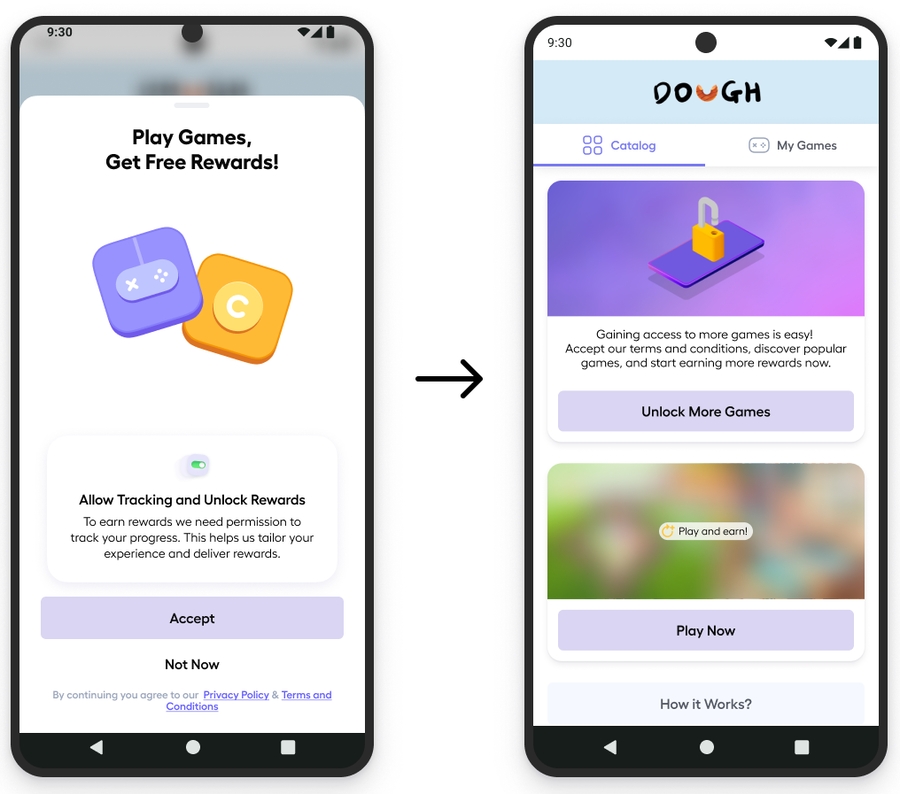
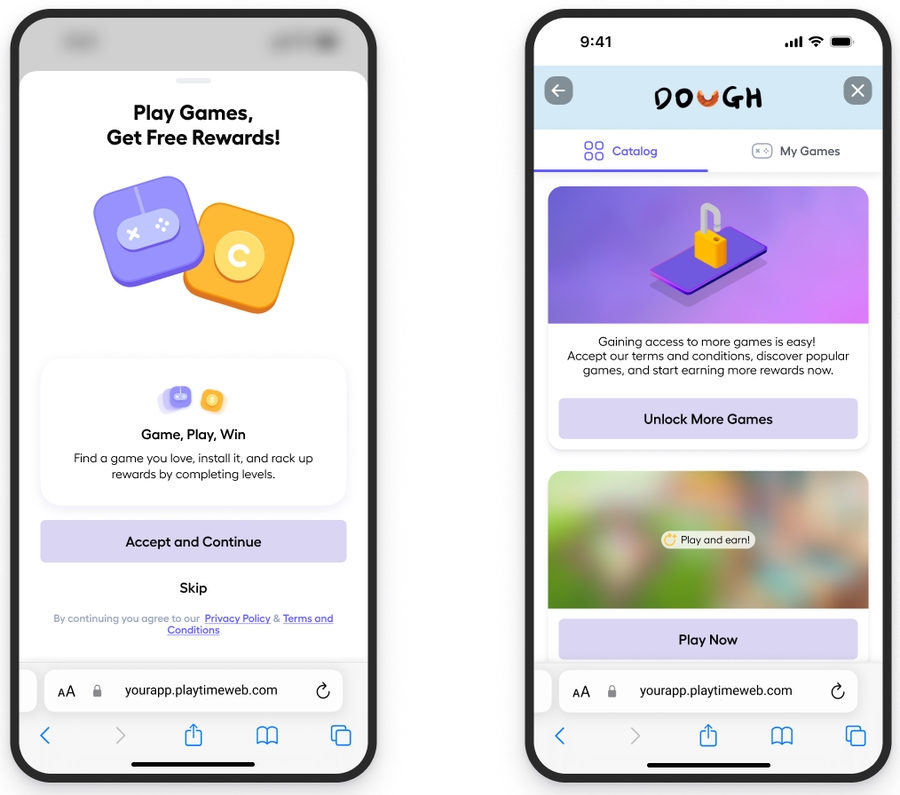
Users need to accept adjoe's Terms of Service (TOS) to use Playtime and access games/apps. Agreeing to the TOS is mandatory before installing any partner apps.
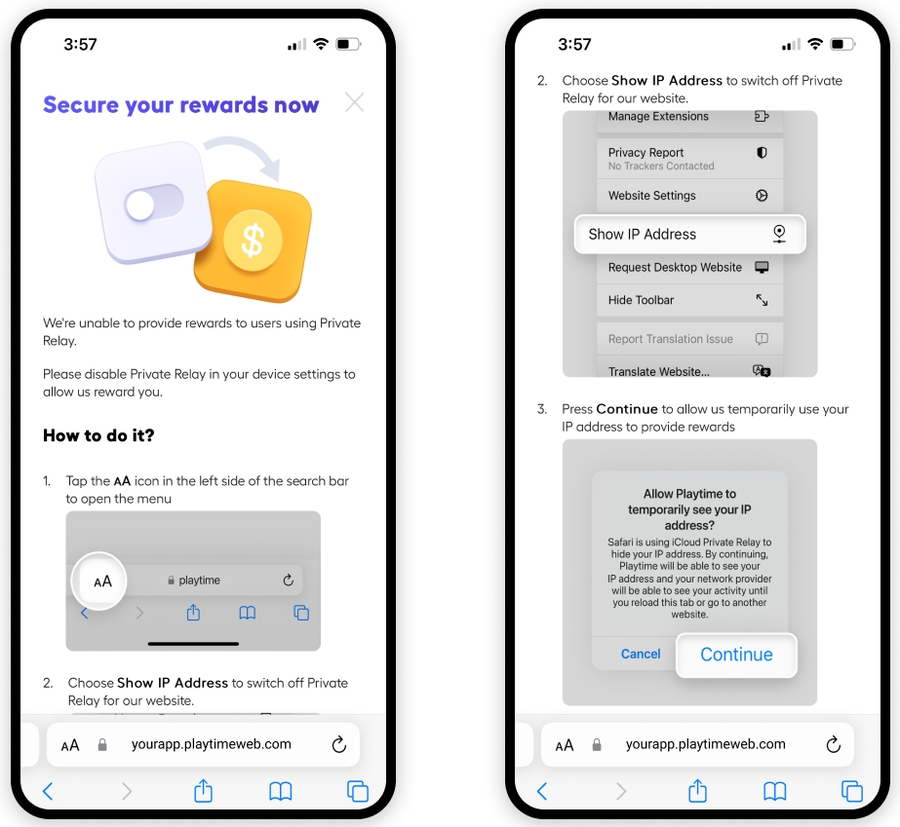
For iOS users Apple provides an opportunity to use the service, which can be enabled in the device settings. If the user has it enabled, then we cannot track the user’s real IP, since all the requests would be proxied via Apple servers. This can have an impact on our ability to reward users for playing games or using apps. In cases where iCloud Private Relay enabled, users would see the following messages asking them to disable it. We will not permit users to user Playtime without disabling this feature.
repositoriesMode.set(RepositoriesMode.FAIL_ON_PROJECT_REPOS)
    repositories {
        google()
        mavenCentral()
        maven { url = uri("https://releases.adjoe.io/maven") }
    }
}dependencies {
...
implementation 'io.adjoe:adjoe-sdk-android:3.4.0'
}dependencies: {
"react-native-adjoe-sdk": "https://github.com/adjoeio/adjoe-react-native-sdk#v3.4.0"
}dependencies:
adjoe:
git:
url: https://github.com/adjoeio/adjoe-flutter-sdk
ref: v3.3.2dependencies: {
"cordova-plugin-adjoe": "https://github.com/adjoeio/adjoe-cordova-sdk#v3.3.2"
}adb shell setprop log.tag.Playtime INFOadb shell setprop log.tag.Playtime ERRORconst showAdjoeOfferwall = async () => {
if (Platform.OS === 'ios') {
return navigation.navigate('InAppBrowser', {
url: `https://{your_company_name}.playtimeweb.com/play?user_id={user_id}&idfa={IDFA}`
});
}
if (adjoeInitialized && Platform.OS === 'android') {
return await Adjoe.showOfferwall().catch(err => {
console.error(`Could not show Adjoe offerwall: ${err}`);
});
}
};https://{your_company_name}.playtimeweb.com/play?user_id={user_id}&idfa={IDFA}allprojects {
repositories {
maven {
url "https://releases.adjoe.io/maven"
}
}
}npm installallprojects {
repositories {
maven {
url "https://releases.adjoe.io/maven"
}
}
}npm installRun the following command to update the CocoaPods repository and install the dependencies:
pod install --repo-updateOnce installation is complete, open the .xcworkspace file generated by CocoaPods. The Playtime SDK will now be available for use within your project.
Check out our troubleshooting guide if you run into any issues with Cocoapods
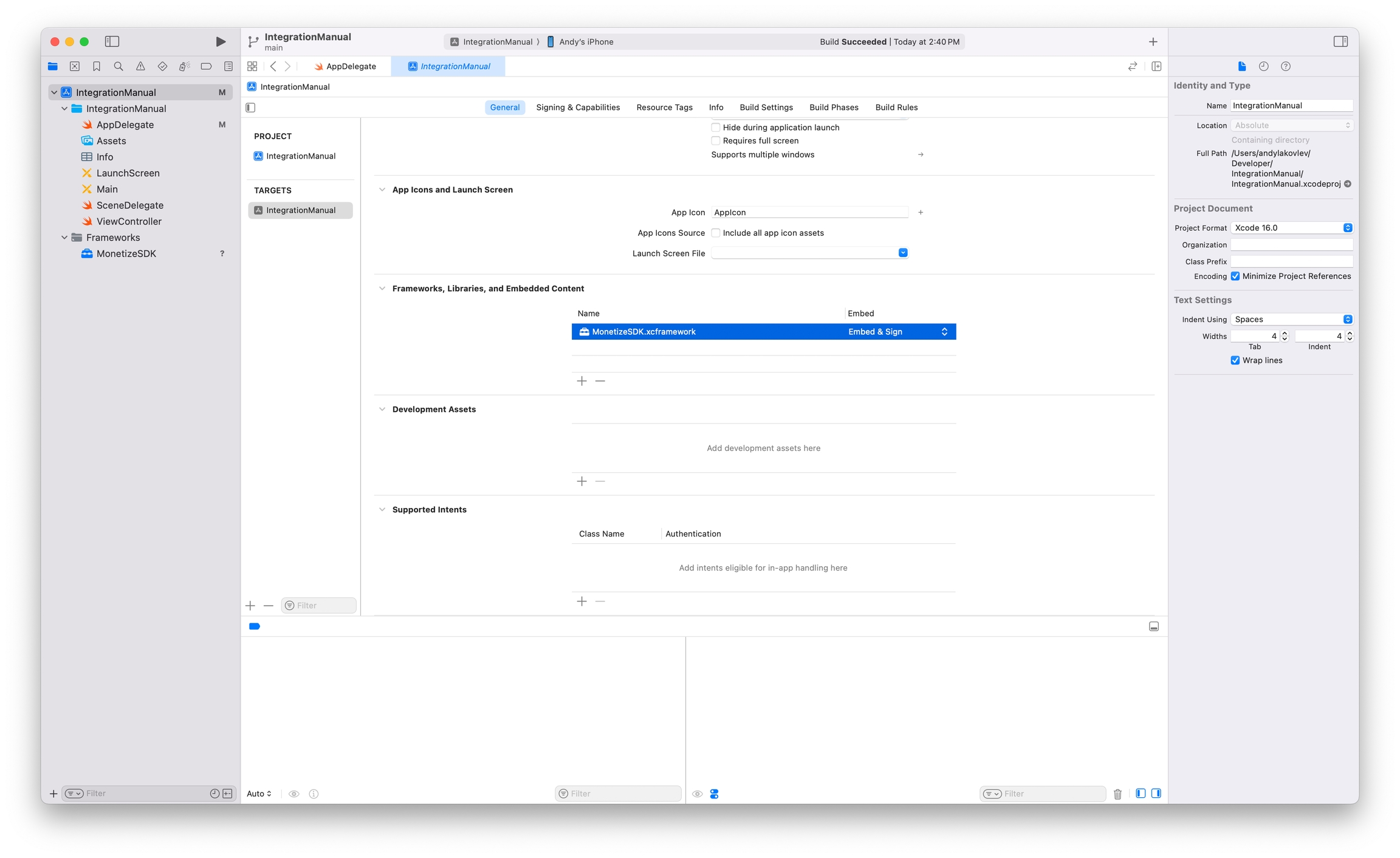
Go to the General tab
Go down to the section Frameworks, Libraries, and Embedded Content
Click on add a new file
Choose the .xcframework
Set Embed & Sign.
npm install --save https://github.com/adjoeio/adjoe-react-native-sdk-ios#1.9.0
yarn add https://github.com/adjoeio/adjoe-react-native-sdk-ios#1.9.0
Install Native dependency
You need to add the native iOS SDK as a dependency to your native iOS project.
CocoaPods is a dependency manager for Cocoa projects. For usage and installation instructions, visit their website.
In your project directory, create a Podfile if one doesn’t already exist.
Inside the Podfile, add the following configuration to include the Playtime SDK as a dependency within your app’s target. You can also specify a version or version range—see the CocoaPods Podfile syntax reference for more details.
Open a terminal and navigate to your project’s root directory.
Run the following command to update the CocoaPods repository and install the dependencies:
Once installation is complete, open the .xcworkspace file generated by CocoaPods. The Playtime SDK will now be available for use within your project.
Check out our troubleshooting guide if you run into any issues with Cocoapods
Go to the tab Signing & Capabilities
Add the App Attest capability
.p8 extension to adjoe. You can find the instruction on how to get the .p8 here. Only the DeviceCheck/AppAttest Service should be added.Key ID: Generate a key identifier associated with the enabled service.
Team ID: Provide the Team ID, which app ID prefix: Team ID and the Bundle ID separated with a dot, for example: M4CAP9HPPJ.com.my.app. You can learn more about the app ID here.
Make sure that after you add the capability to your project, you can see the .entitlements file. Specify the production environment.
Do not use the same credentials, i.e., team ID, with device check for your own app. adjoe should be the only one using the AppAttest / DeviceCheck service with your team ID.
Find the key: com.apple.developer.devicecheck.appattest-environment
Set the value to production (NOT development)
Your entitlements file should look like this:
Ensure both Debug and Release configurations point to the same entitlements file with production set
dependencies: [
  .package(url: "https://github.com/adjoeio/adjoe-monetize-spm", from: "1.9.1")
].product(name: "PlaytimeMonetize", package: "adjoe-monetize-spm")

source 'https://github.com/adjoeio/PlaytimeSpecExternal.git'

platform :ios, '14.0'

target 'MyApp' do
  use_frameworks!

  pod 'PlaytimeMonetize', '~> 1.9.1'
end
placement
The placement of the Playtime Catalog inside your app, e.g., "Main Screen", "Shop", "Interstitial", "More Diamonds Screen", etc.
You can also choose to use adjoe's Apps feature, showing the Playtime catalog with distinct gaming or app experiences.
nongaming
Only shows non-gaming campaigns
gaming
Only shows gaming campaigns
subId1
An optional identifier that is provided back in the S2S payout URL.
subId2
An optional identifier that is provided back in the S2S payout URL.
subId3
An optional identifier that is provided back in the S2S payout URL.
subId4
An optional identifier that is provided back in the S2S payout URL.
subId5
An optional identifier that is provided back in the S2S payout URL.
Task {
    do {

        let params = PlaytimeParamsBuilder()
                .setUANetwork("uaNetwork")
                .setUAChannel("uaChannel")
                .setUASubPublisherCleartext("uaSubPublisherCleartext")
                .setUASubPublisherEncrypted("uaSubPublisherEncrypted")
                .setPlacement("placement")
                .build()

        let subIds = PlaytimeExtensionsBuilder()
                .setSubId1("subId1")
                .setSubId2("subId2")
                .setSubId3("subId3")
                .setSubId4("subId4")
                .setSubId5("subId5")
                .build()

        let options = PlaytimeOptionsBuilder()
                .setParams(params)
                .setExtensions(subIds)
                .build()

        try await Playtime.showCatalog(
                 options: options
        )
    } catch {
        // handle errors / retry if needed
    }
}
optional
ua_subpublisher_encrypted
The encrypted package name or app id of the sub-publisher app within the network from which the user was acquired.
optional
gender
There are three available options you can pass in: "female", "male", "unknown".
optional
age
The current age of the user, e.g., 32.
optional
pub_sub_id_1
These are optional identifiers used in your backend. They will be provided back in the S2S payout.
optional
pub_sub_id_2
See pub_sub_id_1
optional
pub_sub_id_3
See pub_sub_id_1
optional
pub_sub_id_4
See pub_sub_id_1
optional
pub_sub_id_5
See pub_sub_id_1
optional
nongaming
Only shows non-gaming campaigns
gaming
Only shows gaming campaigns
both
Shows both gaming and non-gaming
source 'https://github.com/adjoeio/PlaytimeSpecExternal.git'

platform :ios, '13.0'

target 'MyApp' do
  use_frameworks!

  pod 'PlaytimeMonetize', '~> 1.9.1'
end"dependencies": {
"react-native-adjoe-sdk-ios": "https://github.com/adjoeio/adjoe-react-native-sdk-ios#1.9.0"
}<?xml version="1.0" encoding="UTF-8"?>
<!DOCTYPE plist PUBLIC "-//Apple//DTD PLIST 1.0//EN" "http://www.apple.com/DTDs/PropertyList-1.0.dtd">
<plist version="1.0">
<dict>
<key>com.apple.developer.associated-domains</key>
<array>
<string>webcredentials:prod.adjoe.zone</string>
</array>
<key>com.apple.developer.devicecheck.appattest-environment</key>
<string>production</string>
</dict>
</plist><?xml version="1.0" encoding="UTF-8"?>
<!DOCTYPE plist PUBLIC "-//Apple//DTD PLIST 1.0//EN" "http://www.apple.com/DTDs/PropertyList-1.0.dtd">
<plist version="1.0">
<dict>
<key>sdkHash</key>
<string>INSERT_YOUR_HASH_HERE</string>
</dict>
</plist>
func application(_ application: UIApplication, didFinishLaunchingWithOptions launchOptions: [UIApplication.LaunchOptionsKey: Any]?) -> Bool {
    Task {
        do {
            try await Playtime.initialize(
                userID: "userId",
                sdkHash: "sdkHash",
                uaNetwork: "uaNetwork",
                uaChannel: "uaChannel",
                uaSubPublisherCleartext: "uaSubPublisherCleartext",
                uaSubPublisherEncrypted: "uaSubPublisherEncrypted",
                placement: "placement"
            )
        } catch {
            // handle errors / retry if needed
        }
    }
    return true
}- (BOOL)application:(UIApplication *)application
didFinishLaunchingWithOptions:(NSDictionary<UIApplicationLaunchOptionsKey, id> *)launchOptions
{
[Playtime initializeWithUserID:@"userID"
sdkHash:@"sdkHash"
uaNetwork:@"uaNetwork"
uaChannel:@"uaChannel"
uaSubPublisherCleartext:@"uaSubPublisherCleartext"
uaSubPublisherEncrypted:@"uaSubPublisherEncrypted"
placement:@"placement"
completionHandler:^(NSError * _Nullable error) {
if (!error) {
NSLog(@"Playtime initialized successfully");
} else {
NSLog(@"Error initializing Playtime: %@", error);
}
}];
}Playtime.initialize({
sdkHash: "sdkHash",
userId: "userId",
uaNetwork: "uaNetwork",
uaChannel: "uaChannel",
uaSubPublisherCleartext: "uaSubPublisherCleartext",
uaSubPublisherEncrypted: "uaSubPublisherEncrypted",
placement: "placement"
})
.then(() => {
console.log('Successful initialization!');
})
.catch((err) => {
console.error(err);
});PlaytimeParams *params = [[[[[[PlaytimeParamsBuilder alloc] init]
setUANetwork:@"uaNetwork"]
setUAChannel:@"uaChannel"]
setUASubPublisherCleartext:@"uaSubPublisherCleartext"]
setUASubPublisherEncrypted:@"uaSubPublisherEncrypted"]
setPlacement:@"placement"]
build];
PlaytimeExtensions *subIds = [[[[[[[[PlaytimeExtensionsBuilder alloc] init]
setSubId1:@"subId1"]
setSubId2:@"subId2"]
setSubId3:@"subId3"]
setSubId4:@"subId4"]
setSubId5:@"subId5"]
build];
PlaytimeOptions *options = [[[[PlaytimeOptionsBuilder alloc] init]
setParams:params]
setExtensions:subIds]
build];
[Playtime showCatalogWithOptions:options
completionHandler:^(NSError * _Nullable error) {
if (!error) {
NSLog(@"Error showing Playtime catalog: %@", error);
} else {
NSLog(@"Did show catalog")
}
}];Playtime.showCatalog({
uaNetwork: "uaNetwork",
uaChannel: "uaChannel",
uaSubPublisherCleartext: "uaSubPublisherCleartext",
uaSubPublisherEncrypted: "uaSubPublisherEncrypted",
placement: "placement",
subId1: "subId1",
subId2: "subId2",
subId3: "subId3",
subId4: "subId4",
subId5: "subId5"
})
.then(() => {
console.log('Did show catalog!');
})
.catch((err) => {
console.error(err);
});

both
Shows both gaming and non-gaming
pod install --repo-update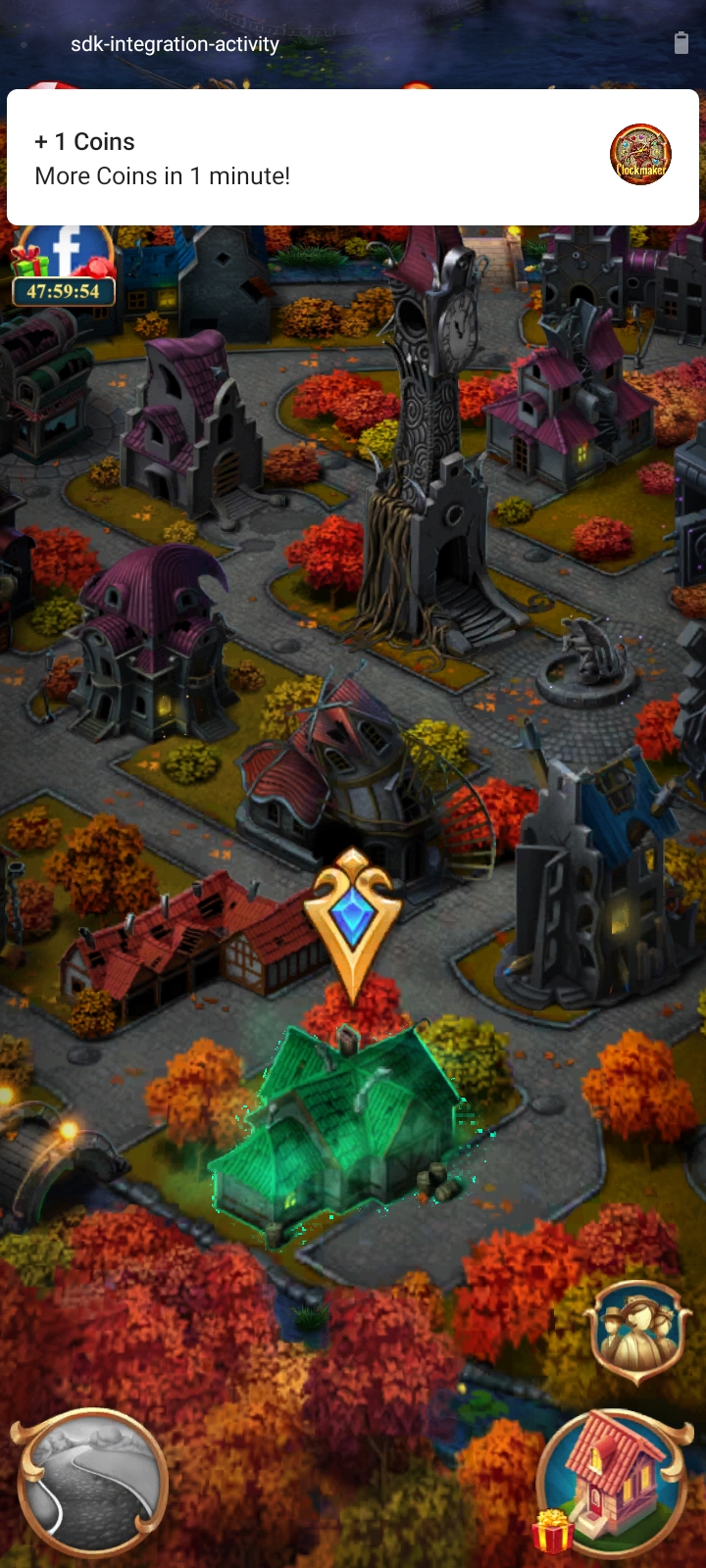

Published: November 10th, 2025
Features and Improvements ✨
Add improved error handling
Bug fixes 🪲
Fix issue with back button
Critical bug fixes
Published: October 16th, 2025
Bug fixes 🪲
Fix bug related to file-picker in chatbot
Published: October 8th, 2025
Bug fixes 🪲
Fix bug related to Android 15
Fix logging error
Published: July 25th, 2025
Update minSdkVersion to 21+
Bug fixes 🪲
Fix improper TLS check
Features and Improvements ✨
Support Android 15 Window Inset Changes
Add enhanced detection of suspicious users
Support Capacitor Framework
Published: July 15th, 2025
Bug fixes 🪲
Fix issue with attaching WebView
Fix out of memory crash with notification icons
Fix issue with time-tracking
Published: April 28th, 2025
Bug fixes 🪲
Accept empty values in PlaytimeParams.
Fix out of memory issue while saving campaign icons.
Fix crash related to registering broadcast receivers.
Show A server error occurred (HTTP 702)
Features and Improvements ✨
Support 16 KB page size devices.
Add ability to remove notification permission.
Use WorkManager to collect usage on old Android devices and discontinue use of Alarm Manager and Services.
Published: November 11th, 2024
Breaking Changes 🚨
Adjoe has been renamed to Playtime.
Offerwall has been renamed to Catalog.
For React Native Only:
user-id has been renamed to userId
The following APIs have been impacted by these changes. Please update your code so that the correct APIs are used.
Bug fixes 🪲
Fix a crash regarding loading resources in WebView
Remove additional = in playtime notification for certain translations
Fix not opening installed campaign apps for Android >= 13
Stop using
Features and Improvements ✨
Add API Reference
Support customisable texts in reward notifications
Automatically redirect users to the app after accepting the Android usage permissions
Open the usage permission screen within the app rather than the Android Settings
Update usages of Adjoe to Playtime.
Update usages of Offerwall to Catalog.
For React Native Only:
Update usages of user-id to userId
setProfile - Instead you should use setUserProfile with PlaytimeOptions during the init.
canShowOfferwall / canShowCatalog
Published: 17 July 2024
Bug fixes 🪲
Fix ANR related to protection library
2.2.1 Has a known ANR, please do not use this version.
Published: 24 May 2024
Bug fixes 🪲
Fix "webpage not available" error which occurred occasionally when returning back to Playtime from the Play Store
Fix Proguard issue that occurred while building a release version of the APK
Improve the SDK's “notification” logic.
Fix exception caused by running multiple processes
Features and Improvements ✨
Deprecate canShowOfferwall API
Deprecate setProfile API
Improve Korean translations
Add enhanced detection of suspicious users
Published: 21 March 2024
Bug fixes 🪲
Improve usage permission handling on Android 13+
Features and Improvements ✨
Add enhanced detection of suspicious users
Add cash currency support in reward notifications
Published at: 19 December 2023
Bug fixes
Enhance Fraud detection
Translation fixes for the notifications
Fix for users that were not getting rewarded for the installed apps after they updated an SDK.
Published at: 28 July 2023
Bug fixes
Enhance Fraud detection
Usage collection enhancement
Fixed an inconsistency in the External User ID
Published at: 16 Mar 2023
Android 13 support
Depreciation of safetynet and replacing it with play integrity
New fraud update [VPN-detection]
Published at: 11 Nov 2022
Fix issues with notification.
Enhancements and improvements of workmanager and threading.
Bug fixes.
Published at: 14 Sep 2022
Fix issues with rewards.
Allow multiple init without throwing Already Initialised Exception.
Error visibility enhancement.
Published at: 11 Mar 2022
Migrate SDK to Androidx.
Add full support to android12.
Adding android:export in Manifest.
Update
Published at: 8 Oct 2021
Further enhancements on crash reports
Bugfixes
Published at: 14.09.2021
Additional scenarios to display Advance campaigns.
Enhance crash reports.
Fix Network issues.
Bugfixes.
Published at: 08.06.2021
Added App Info Fields to Campaigns.
Added Support for Advance.
Usage/Reward Enhancements.
Bugfixes.
Published at: 24.03.2021
Made the SDK lighter on permissions.
Published at: 10.03.2021
Resolved potential compatibility issues surrounding the WorkManager library.
Published at: 03.03.2021
Full support for android 11 on targetSDKVersion 30.
Improved the Toast Notification to give users immediate feedback.
Improved the usage collection reliability.
Changed Sub-ID handling with AdjoeParams object to provide further context on the users (such as User Acquisition data and the Playtime placement).
Published at: 28.01.2021
Improved initialization speed.
Improved onboarding user flow on Android 10+.
Bugfix for potential crashes.
Published at: 30.11.2020
Bugfixing for calling the init method outside the main process.
Bugfix for accepting the TOS without a network connection.
Published at: 04.11.2020
Bugfixes for building on Windows.
Published at 29.10.2020
Bugfixes for apps using minified R8/ProGuard builds.
Published at 07.10.2020
Bugfixes.
Published at 25.09.2020
Kotlin: Fixed Adjoe.Options in Kotlin.
Unity: Added inline documentation.
Unity: The methods now output logs when called inside the Unity Editor.
Published at: 16.09.2020
Added the method Adjoe.isAdjoeProcess to check whether the current process is the :adjoe child process.
Added logs to more easily trace and reproduce bugs. See .
AdjoeOfferwallListener
PlaytimeCatalogListener
AdjoeNotInitializedException
PlaytimeNotInitializedException
AdjoeInitialisationListener
PlaytimeInitialisationListener
Adjoe.Options
PlaytimeOptions
AdjoeParams
PlaytimeParams
AdjoeGender
PlaytimeGender
AdjoeExtensions
PlaytimeExtensions
setDataDirectorySuffixWebViewFix crash related to the visibility of AdjoeActivity
Add type definitions in React Native Wrapper
Add enhanced detection of suspicious users
Improve error handling and performance through removal of unused internal classes
Improve security of WebView settings
Supporting all React Native versions.
You can now use the Adjoe.setUAParams(adjoeParams : AdjoeParams) to add additional parameters.
Added translation for additional 7 languages ( in, it, ja, ko, pl, pt and tr) in addition to en, de, es, fr
consistent update cross all wrappers to mark this update as the new base line
workManagerAdd flag IMMUTABLE and MUTABLE to pendingIntent.
Bug fixes.
Further enhancement.
Adjoe.init()
Playtime.init()
Adjoe.isInitialized()
Playtime.isInitialized()
Adjoe.sendUserEvent()
Playtime.sendUserEvent()
Adjoe.getOfferwallIntent()
Playtime.getCatalogIntent()
Adjoe.setOfferwallListener()
Playtime.setCatalogListener()
Adjoe.removeOfferwallListener()
Playtime.removeCatalogListener()
Below is a full example implementation of the Playtime SDK. It uses Jetpack Compose to set up a button that leads the user to the Playtime Offerwall. To run the example:
Add the dependency
Add your SDK hash
If you're using an emulator, add it as a test device.
In the future we will update this page with examples for our other wrappers. Please check back soon.
package com.example.sdk_integration_activity

import android.content.Context
import android.os.Bundle
import android.util.Log
import androidx.activity.ComponentActivity
import androidx.activity.compose.setContent
import androidx.compose.foundation.layout.Arrangement
import androidx.compose.foundation.layout.Column
import androidx.compose.foundation.layout.fillMaxSize
import androidx.compose.foundation.layout.size
import androidx.compose.material3.Button
import androidx.compose.material3.MaterialTheme
import androidx.compose.material3.Surface
import androidx.compose.material3.Text
import androidx.compose.runtime.Composable
import androidx.compose.runtime.rememberCoroutineScope
import androidx.compose.ui.Alignment
import androidx.compose.ui.Modifier
import androidx.compose.ui.tooling.preview.Preview
import androidx.compose.ui.unit.dp
import io.adjoe.sdk.Playtime
import io.adjoe.sdk.Playtime.getUserId
import io.adjoe.sdk.PlaytimeException
import io.adjoe.sdk.PlaytimeExtensions
import io.adjoe.sdk.PlaytimeGender
import io.adjoe.sdk.PlaytimeInitialisationListener
import io.adjoe.sdk.PlaytimeNotInitializedException
import io.adjoe.sdk.PlaytimeCatalogListener
import io.adjoe.sdk.PlaytimeParams
import io.adjoe.sdk.PlaytimeUserProfile
import kotlinx.coroutines.Dispatchers
import kotlinx.coroutines.launch
import kotlinx.coroutines.withContext
import java.util.Calendar
import java.util.Date

class MainActivity : ComponentActivity() {
    override fun onCreate(savedInstanceState: Bundle?) {
        super.onCreate(savedInstanceState)
        initPlaytime()
        setupPlaytimeCatalogListener()
    }

// the initPlaytime() function has the playtime params, but if your params have
// changed, or if you don't yet have a param, it is recommended that you take a
// different approach. For example, if you don't get the user ID until after the
// user has signed in. You should then send these values in the OnResume.
private fun initPlaytime()
{
    // pass in the user id. These values should come from your backend.
    // If you don't get the userID until after the sign-in, this value can be passed-in onResume.
    val userId = "f0b9d695-405d-4b13-8a79-5fe21dc901e6"

    // set up the parameters, these values should also come from your backend.
    val playtimeParams = PlaytimeParams.Builder()
        .setUaNetwork("tiktok")
        .setUaChannel("video")
        .setUaSubPublisherCleartext("Example: Game 2")
        .setUaSubPublisherEncrypted("8bb1e7911818be32449f6726ff7ecd102ba1862b")
        .setPlacement("Main Screen")
        .build()

    // these values are additional options that you can pass-in to identify users. These data will be sent back in the S2S URL. Example data below.
    val playtimeExtensions = PlaytimeExtensions.Builder()
        .setSubId1("Target Group 1")
        .setSubId2("Target Group 2")
        .build()

    //Set the options
    val options = PlaytimeOptions()
        .setUserId(userId)
        .setParams(playtimeParams)
        .setUserProfile(getUserProfile())
        .setExtensions(playtimeExtensions)

    // Initialize the adjoe Playtime SDK, passing in the Playtime Options
    try {
        Playtime.init(this, "your_sdk_hash", options, object : PlaytimeInitialisationListener {
            override fun onInitialisationFinished() {
                // The adjoe Playtime SDK was initialized successfully
                //("initialized successfully")
            }

            override fun onInitialisationError(exception: Exception?) {
                // An error occurred while initializing the Playtime SDK.
                // Note that exception might be null
            }
        })
    } catch (e: PlaytimeNotInitializedException) {
        // Handle initialization exception
    }
    setContent {
        ExampleApp(this)
    }
}

//Get the user profile information. These data should come from your backend.
    fun getSampleUserGender(): String {
        return "male"
    }

    //Pass in the user's birthday information if it's available
    //and if they've consented to sharing it
    fun getSampleUserBirthday(): Date {
        val birthday = Calendar.getInstance()
        birthday.set(Calendar.YEAR, 1995)
        birthday.set(Calendar.MONTH, Calendar.JANUARY)
        birthday.set(Calendar.DAY_OF_MONTH, 30)

        return birthday.time
    }

    val birthday = getSampleUserBirthday()

    fun getUserProfile(): PlaytimeUserProfile {
        val gender: PlaytimeGender = when (getSampleUserGender()) {
            "male" -> PlaytimeGender.MALE
            "female" -> PlaytimeGender.FEMALE
            else -> PlaytimeGender.UNKNOWN
        }
        return PlaytimeUserProfile(gender, birthday)
    }

//Set up the listener for when the catalog is opened or closed.
    private fun setupPlaytimeCatalogListener() {
        Playtime.setCatalogListener(object : PlaytimeCatalogListener {
            override fun onCatalogOpened(type: String) {
                Log.d("ADJOE", "Catalog of type '" + type + "' was opened")
            }

            override fun onCatalogClosed(type: String) {
                Log.d("ADJOE", "Catalog of type '" + type + "' was closed")
            }
        })
    }

    //Whenever your app comes back into the foreground,
    //you should init the SDK again and send the updated catalog Params.
    override fun onResume() {
        super.onResume()
        initPlaytime()
    }
}

//Set up the params to send with the teaser. Use this in case you have multiple catalog
// placements in your app and want to evaluate the effectiveness of each.
val teaserPlaytimeParams: PlaytimeParams = PlaytimeParams.Builder()
    .setPlacement("Main Screen")
    .build()

//Set up the additional methods
private suspend fun additionalChecks(context: Context) {
    withContext(Dispatchers.IO) {
        getVersion()
        getVersionName()
        val tosAccepted = hasAcceptedTOS(context)
        val permissionsAccepted = hasAcceptedUsagePermission(context)
        val userIdRetreived = getUserId(context)
    }
}
suspend fun getVersion() {
    val version: Int? = Playtime.getVersion()
    Log.d("ADJOE", "Playtime SDK version is $version")
}

suspend fun getVersionName() {
    val versionName: String? = Playtime.getVersionName()
    Log.d("ADJOE", "Playtime SDK version name is $versionName")
}

suspend fun hasAcceptedTOS(context: Context) {
    val accepted: Boolean? = Playtime.hasAcceptedTOS(context)
    Log.d("ADJOE", "TOS accepted: $accepted")
}

suspend fun hasAcceptedUsagePermission(context: Context) {
    val accepted: Boolean? = Playtime.hasAcceptedUsagePermission(context)
    Log.d("ADJOE", "Usage permission accepted: $accepted")
}

suspend fun getUserId(context: Context) {
    val userId: String? = Playtime.getUserId(context)
    Log.d("ADJOE", "User ID is \"$userId\"")
}

// Set up the teaser event function
private fun sendTeaser(context:Context) {
            Playtime.sendUserEvent(context, Playtime.EVENT_TEASER_SHOWN, null, teaserPlaytimeParams)
        }

@Composable
fun ExampleApp(activity: ComponentActivity) {
    Surface(color = MaterialTheme.colorScheme.background) {
        Column(
            modifier = Modifier.fillMaxSize(),
            verticalArrangement = Arrangement.Center,
            horizontalAlignment = Alignment.CenterHorizontally
        ) {
            ShowPlaytimeCatalogButton(activity)
        }
    }
}

@Composable
fun ShowPlaytimeCatalogButton(activity: ComponentActivity) {
    val coroutineScope = rememberCoroutineScope()

    Column(
        modifier = Modifier.fillMaxSize(),
        verticalArrangement = Arrangement.Center,
        horizontalAlignment = Alignment.CenterHorizontally
    ) {

        // Button to navigate to the catalog screen
        Button(
            onClick = {
                coroutineScope.launch {
                    try {
                        val catalogCatalogIntent = Playtime.getCatalogIntent(activity)
                        activity.startActivity(playtimeCatalogIntent)
                    } catch(notInitializedException: PlaytimeNotInitializedException) {
                        // Handle not initialized exception
                    } catch(exception: PlaytimeException) {
                        // Handle other exceptions
                    }
                    sendTeaser(context = activity.applicationContext) // send the teaser when the user clicks the Catalog Button. The teaser can also be sent when the user views it.
                    additionalChecks(context = activity.applicationContext) // run the additional checks.
                }
            },
            modifier = Modifier.size(width = 250.dp, height = 75.dp)
        ) {
            Text("Show Playtime Catalog")
        }
    }
}

@Preview(showBackground = true)
@Composable
fun DefaultPreview() {
    ExampleApp(ComponentActivity())
}Advertisers define ad formats and target countries through campaigns, which are then featured in the Playtime Catalog. These campaigns are set by advertisers and allow for rewards once the completion of the campaign conditions are verified through the MMP.
The Playtime catalog lists various campaigns that the users can complete to receive a reward in your app's native in-app currency. Our algorithms prioritize displaying games and apps to users based on their potential to generate maximum revenue and the likelihood of being downloaded. Campaign availability depends on user permissions and country.
Advertisers define ad formats and target countries through campaigns, which are then featured in the Playtime Catalog. These campaigns are set by advertisers and allow for rewards once the completion of the campaign conditions are verified through the MMP.
The Playtime catalog lists various campaigns that the users can complete to receive a reward in your app's native in-app currency. Our algorithms prioritize displaying games and apps to users based on their potential to generate maximum revenue and the likelihood of being downloaded. Campaign availability depends on user permissions and country.
user_uuid
Identifies the user eligible for rewards. This ID must align with the one provided during SDK initialization or user-id in the PlaytimeWeb URL.
String
Required
Both
sid
The request signature, used to verify request authenticity. Requires a token, which will be shared with you by your Account Manager. Detailed setup instructions .
String
Required
Both
trans_uuid
The unique transaction ID.
UUID v4
Required
Both
coin_amount
The amount of virtual currency the user should get.
Integer
Required
Both
currency
The name of the virtual currency.
String
Required
Both
sdk_app_id
App ID of the SDK. Example: com.example.android.gamename
String
Optional
Both
app_id
App ID that is used to generate usage.
String
Optional
Both
device_id
Optional external device ID.
String
Optional
Both
app_name
URL encoded app name in English
String
Optional
Both
reward_level
The name of the reward level of the game. For Time-based (Playtime) campaigns, this will correspond to each of the 37 levels. For event-based campaigns (Advance+), this value will always be 0.
Integer
Optional
Android
reward_type
The type of reward given. Example: Playtime, AdvancePlus
String
Optional
Both
ua_network
The network from which the user was acquired, e.g., adwords, facebook, organic.
String
Optional
Both
ua_channel
The channel of the campaign in the network that led to the user's acquisition, e.g., incent, video.
String
Optional
Both
ua_subpublisher_encrypted
The encrypted package name or app id of the sub-publisher app within the network from which the user was acquired.
String
Optional
Both
ua_subpublisher_cleartext
The cleartext package name of app id of the sub publisher app in the network where the user was acquired, e.g., com.domain.appName
String
Optional
Both
placement
The placement of Playtime inside your app, e.g., "Main Screen", "Shop", "Interstitial", "More Diamonds Screen", etc.
String
Optional
Both
app_category
Category of the App that user played. Example: Board, Casino, Casual, Entertainment, Puzzle, Other
String
Optional
Both
usage_seconds
Amount of seconds the current level requires. Time-based campaigns (Playtime) only.
Integer
Optional
Android
total_usage_seconds
Total amount of seconds that user has played this game. Time-based campaigns (Playtime) only.
Integer
Optional
Android
advanceplus_event_name
The name of the milestone/event that user completed to receive this reward. Event-based campaigns (Advance+) only.
String
Optional
Both
advanceplus_event_description
The description of the milestone/event that user completed to receive this reward. Event-based campaigns (Advance+) only.
String
Optional
Both
publisher_sub_id1
Value set in the extension object to be returned in the S2S payout URL.
String
Optional
Both
publisher_sub_id2
Value set in the extension object to be returned in the S2S payout URL.
String
Optional
Both
publisher_sub_id3
Value set in the extension object to be returned in the S2S payout URL.
String
Optional
Both
publisher_sub_id4
Value set in the extension object to be returned in the S2S payout URL.
String
Optional
Both
publisher_sub_id5
Value set in the extension object to be returned in the S2S payout URL.
String
Optional
Both
event_boost_factor
The boost factor for the current promotion. Example: 2x, returned as 2.
Integer
Optional
Both
event_boost_start_date
Date when the boost factor began.
String
Optional
Both
event_boost_stop_date
Date when the boost factor stopped.
String
Optional
Both
install_date
Date when the game was installed.
String
Optional
Both
manually_completed
Returns true if the event was completed manually in the monetize dashboard, false otherwise.
Boolean
Optional
Both
advanceplus_event_level
Returns the consecutive order number of the completed milestone. Starts from 0.
Integer
Optional
Both
event_type
Returns sequential or bonus , depending on the event.
String
Optional
Both
timed_coins_amount
Returns the amount of coins for the time-boosted event.
Integer
Optional
Both
timed_coins_event_duration
Returns the duration of the time-boosted event in seconds.
Integer
Optional
Both
rewarded_at
Time the reward was sent. Format: Unix epoch with seconds precision.
Integer
Optional
Both
Advertisers define ad formats and target countries through campaigns, which are then featured in the Playtime Catalog. These campaigns are set by advertisers and allow for rewards once the completion of the campaign conditions are verified through the MMP.
The Playtime catalog lists various campaigns that the users can complete to receive a reward in your app's native in-app currency. Our algorithms prioritize displaying games and apps to users based on their potential to generate maximum revenue and the likelihood of being downloaded. Campaign availability depends on user permissions and country.
There are 2 parts to implementing and using the Playtime SDK:
Part 1: Intialize the Playtime SDK
To make all of the features of the Playtime SDK available, you need to initialize it first. This initialization happens asynchronously in the background, with its completion indicated by a callback method. Make sure to initialize the SDK immediately after the app launches and each time it returns to the foreground.
Initialize early: Initialize the SDK as soon as possible after your app starts. This ensures all Playtime SDK features are ready for use right away.
Initialize after your app authentication: Once a user signs up or logs in, initialize the SDK again with the latest user details. This updates the userID within the SDK.
Initialize regularly: For the best user experience, call the init method every time your app comes into the foreground. Doing so will not affect your app's performance.
Important: Initialization must happen on the main thread since it's a UI-related action. Calling any of the init methods off the main thread could lead to app disruptions.
Pass the following additional options to the Playtime SDK during initialization:
When initializing the SDK, you should include additional User Acquisition and Playtime placement parameters. These parameters allow you to track and analyze Playtime's performance within your app.
You can provide these parameters in any combination, both at initialization and at any point in the app's lifecycle—such as when a user launches the Playtime Catalog interacts with a campaign or requests a payout.
These values must be url-safe as they could potentially be returned as query parameters in the .
Our game recommendations are personalized through algorithms that consider users' preferences and gender information. If a user consents to share their gender and/or birthday, you can share this information with adjoe to enhance the customization of game suggestions.
The code below is for demonstration purposes and can be modified to best suit your app's set-up. The important thing is that you get the user's birthday and gender information from your backend and pass in the data to adjoe when initializing.
These are optional identifiers used in your backend. They will be provided back in the URL.
We recommend to verify the SDK is correctly initialized. Each wrapper provides an Playtime.isInitialized method for this purpose. When executed, this method returns true if the SDK is initialized, and false otherwise. Use IsInitialized for debugging or to verify SDK initialization before calling other methods.
Important: Do not call Playtime.init based on the result of isInitialized.The SDK already performs its own initialization checks. Doing so again may degrade the user experience.
The primary function of the Playtime SDK is showing the catalog to the users. The Playtime lists various campaigns that the users can complete to receive a reward in the app's native in-app currency.
When the placement button for Playtime appears, whether clicked or not, please send us the teaser event. This notifies adjoe when and where the placement is shown, which is crucial for tracking user engagement and enhancing the user experience.
Use playtimeParams to pass in the placement information, i.e., where in the app the button was shown - for example: "Main Page".
We recommend triggering the catalog via a button or UI element (within the SDK it is housed in a separate activity). Rather than launching the activity directly, we provide an Intent for you to initiate it, enabling, for example, transition animations for a smoother user experience.
Use the code below to display the adjoe Playtime Offerwall. It is recommended to send any updated PlaytimeParams when launching the Playtime Catalog.
You can set up a listener to be notified when the Playtime Catalog is opened or closed, with the event type always being catalog. To remove the listener, simply call Playtime.removeCatalogListener().
Initialization triggers: Call the init method at the app start and resume (when the app comes back into the foreground).
Placement
String
The placement of the Playtime Catalog inside your app, e.g., "Main Screen", "Shop", "Interstitial", "More Diamonds Screen", etc.
You can also choose to use adjoe's Apps feature, showing the Playtime catalog with distinct gaming or app experiences.
User ID
String
A custom identifier you can assign to each user. If you haven't set one, the Playtime SDK generates it automatically. It is accessible through Playtime.getUserId(Context). This ID is necessary for S2S payouts, thus required. Ensure this value is url-safe and that the value is never empty.
Object
Values for the User Acquisition and Playtime placement information. These values must be url-safe. More on this below.
Object
Extensions
Object
These are optional identifiers used in your backend. They will be provided back in the S2S payout.
UA Network
String
User Acquisition Network. The network through which the user was acquired, e.g., Adwords, Facebook, or Organic.
UA Channel
String
User Acquisition Channel. The channel within the network from which the user was acquired, e.g. incentivized or video campaigns.
User Acquisition Sub Publisher Cleartext
String
The cleartext package name of the sub-publisher's app ID within the network from which the user was acquired, e.g., com.domain.appName.
User Acquisition Sub Publisher Encrypted
String
The encrypted package name or app ID of the sub-publisher's app from the network where the user was acquired.
getVersion
Returns the internal version code of the Playtime SDK, for example 70.
getVersionName
Returns the version name of the Playtime SDK, for example 3.0.0
hasAcceptedTOS
Checks whether the user has accepted the adjoe Terms of Service (TOS). Returns true if the user has accepted the TOS and false otherwise.
getUserId
Returns the unique ID of the user by which the user is identified.
hasAcceptedUsagePermission
Checks whether the user has given access to the usage statistics. Returns true when the user has given access, false otherwise.
If the user rejects TOS, they will see the following screen. No campaigns will be shown.
After the user selects "Allow", they will be taken to the usage settings to allow tracking.
Users need to accept adjoe's Terms of Service (TOS) to use Playtime and access games. Agreeing to the TOS is mandatory before installing any partner apps. After users accept the TOS, we can identify the types of apps/games they have installed, allowing our algorithm to tailor game suggestions on the catalog based on their preferences.
We also ask the user to accept the App Usage Permissions. This allows us to monitor the time spent in each game or app. Without accepting these permissions, users won't be eligible to participate in Playtime campaigns and will be limited to only Advance or Advance+ campaigns.
// The initialization will run in the main application process asynchronously in the background and notify you when it is finished by invoking the PlaytimeInitializationListener's onInitialisationFinished or onInitialisationError method.

class MainActivity : AppCompatActivity {

    override fun onCreate(savedInstanceState: Bundle?) {
        Playtime.init(this, "sdkHash", options, object: PlaytimeInitialisationListener {

            override fun onInitialisationFinished() {
                // the Playtime SDK was initialized successfully
            }

            override fun onInitialisationError(exception: Exception?) {
                // an error occurred while initializing the Playtime SDK.
                // note that exception might be null
            }
        })
    }
}// The initialization will run in the main application process asynchronously in the background and notify you when it is finished by invoking the PlaytimeInitializationListener's onInitialisationFinished or onInitialisationError method.
public class MainActivity extends Activity {
@Override
protected void onCreate() {
super.onCreate();
Playtime.init(this, "sdkHash", options, new PlaytimeInitialisationListener() {
@Override
public void onInitialisationFinished() {
// the Playtime SDK was initialized successfully
}
@Override
public void onInitialisationError(Exception exception) {
// an error occurred while initializing the Playtime SDK.
// note that exception might be null
}
});
}
}// Should be called during the app start, for example in the App.js's componentDidMount() method
Playtime.init('sdkHash', options).then(() => {
console.log('Initialized Playtime SDK');
}).catch((err) => {
console.log('Could not initilize Playtime SDK');
console.error(err);
});// The init method will return a Future<void> which succeeds when the SDK has been initialized successfully and fails with an error when the initialization fails. Make sure to initialize in initState as well as didChangeAppLifecycleState.
import 'package:adjoe/adjoe.dart';
import 'package:adjoe/gender.dart';
import 'package:adjoe/options.dart';
import 'package:adjoe/params.dart';
import 'package:adjoe/user_profile.dart';
void initializePlaytime() {
Playtime.init(sdkHash, options).then((_) {
print('Init finished successful');
}, onError: (err) {
print('Init failed: $err');
});
}using io.adjoe.sdk;
public class Main {
void Start()
{
Playtime.Init("sdkHash", options, PlaytimeInitialisationSuccess, PlaytimeInitialisationError);
}
public void PlaytimeInitialisationSuccess()
{
// the Playtime SDK was initialized successfully
}
public void PlaytimeInitialisationError(Exception exception)
{
// an error occurred while initializing the Playtime SDK.
// note that exception might be null
}
}Playtime.init(
{
apiKey: SDK_HASH //MANDATORY,
userId: "VALUE" // OPTIONAL,
applicationProcessName: "VALUE" // OPTIONAL,
playtimeParams: { // OPTIONAL
uaNetwork: "VALUE", // OPTIONAL
uaChannel: "VALUE", // OPTIONAL
uaSubPublisherCleartext: "VALUE", // OPTIONAL
uaSubPublisherEncrypted: "VALUE", // OPTIONAL
placement: "VALUE" // OPTIONAL
},
playtimeExtension: { // OPTIONAL
subId1: "VALUE", // OPTIONAL
subId2: "VALUE", // OPTIONAL
subId3: "VALUE", // OPTIONAL
subId4: "VALUE", // OPTIONAL
subId5: "VALUE" // OPTIONAL
},
playtimeUserProfile: { // OPTIONAL
gender: "VALUE", // OPTIONAL
birthday: "VALUE" // OPTIONAL
}
})
.then(() => //INITIALIZATION FINISHED SUCCESSFULLY )
.catch((err) => //HANDLE ERROR)window.PlaytimePlugin.initialize(
'sdkHash','options',
function() {
// the Playtime plugin was initialized successfully
},
function(err) {
// an error occurred while initializing the Playtime plugin.
},
);val options = PlaytimeOptions()
.setUserId(userId)
.setParams(playtimeParams);
.setUserProfile(playtimeUserProfile)
.setExtensions(playtimeExtensions);Playtime.Options options = new PlaytimeOptions()
.setUserId(userId)
.setParams(playtimeParams);
.setUserProfile(playtimeUserProfile)
.setExtensions(playtimeExtensions);Playtime.init('sdkHash',
{
'userId': "06957070-6579-46cd-9665-d8fe7cd286d5",
'playtimeParams': {
'uaNetwork': "uaNetwork_value",
'uaChannel': "uaChannel_value",
'uaSubPublisherCleartext': "uaSubPublisherCleartext_value",
'uaSubPublisherEncrypted': "uaSubPublisherEncrypted_value",
'placement': 'placement_value'
},
'playtimeExtension': {
'subId1': "RN_subId1",
'subId2': "RN_subId2",
'subId3': "RN_subId3",
'subId4': "RN_subId4",
'subId5': "RN_subId5"
},
'playtimeUserProfile': playtimeUserProfile()
}).then(() => {
console.log('Initialized Playtime SDK');
})
.catch((err) => {
console.log('Could not initilize Playtime SDK');
console.error(err);
});PlaytimeOptions options = new PlaytimeOptions()
..userId = 'user_id'
..params = (new PlaytimeParams()
..uaNetwork = 'The user acquisition network'
..uaChannel = 'The user acquisition channel.'
..uaSubPublisherCleartext = 'The user acquisition publisher cleartext'
..uaSubPublisherEncrypted = 'The user acquisition publisher encrypted'
..placement = 'The catalog placement')
..userProfile = playtimeUserProfile
..extensions = (new PlaytimeExtensions()
..subId1 = 'flutter_subId1'
..subId2 = 'flutter_subId2'
..subId3 = 'flutter_subId3'
..subId4 = 'flutter_subId4'
..subId5 = 'flutter_subId5');PlaytimeOptions options = new PlaytimeOptions()
.SetUserId(userId)
.SetPlaytimeParams(playtimeParams)
.SetPlaytimeUserProfile(playtimeUserProfile)
.SetPlaytimeExtensions(playtimeExtensions);// A complete example
window.PlaytimePlugin.initialize(
'sdkHash',
{
'user_id': getUserId(),
'playtime_params': {
'uaNetwork': "uaNetwork_value",
'uaChannel': "uaChannel_value",
'uaSubPublisherCleartext': "uaSubPublisherCleartext_value",
'uaSubPublisherEncrypted': "uaSubPublisherEncrypted_value",
'placement': 'placement_value'
},
'playtime_extension': {
'subId1': "RN_subId1",
'subId2': "RN_subId2",
'subId3': "RN_subId3",
'subId4': "RN_subId4",
'subId5': "RN_subId5"
},
'user_profile': {
'gender': 'MALE',
'birthdate': "2023-07-17T22:25:00.000Z"
}
},
function() {
// the Playtime plugin was initialized successfully
},
function(err) {
// an error occurred while initializing the Playtime plugin.
},
);val playtimeParams = PlaytimeParams.Builder()
.setUaNetwork("network")
.setUaChannel("channel")
.setUaSubPublisherCleartext("SubPublisherCleartext")
.setUaSubPublisherEncrypted("SubPublisherEncrypted")
.setPlacement("placement")
.build()
Playtime.setUAParams(context, playtimeParams)PlaytimeParams playtimeParams = new PlaytimeParams.Builder()
.setUaNetwork("network")
.setUaChannel("channel")
.setUaSubPublisherCleartext("SubPublisherCleartext")
.setUaSubPublisherEncrypted("SubPublisherEncrypted")
.setPlacement("placement")
.build();
Playtime.setUAParams(context, playtimeParams);playtime.setUAParams({
'uaNetwork': "RN-uaNetwork",
'uaChannel': "RN-uaChannel",
'uaSubPublisherCleartext': "RN-uaSubPublisherCleartext",
'uaSubPublisherEncrypted': "RN-uaSubPublisherEncrypted",
'placement': 'RN-placement'
})
.then(() => {
this.logDialog(`Setting UA prameters were sucessful.`);
})
.catch((err) => {
this.logDialog(`Setting UA prameters failed.`);
console.error(err);
});Playtime.setUAParams(new PlaytimeParams()
..uaNetwork = 'uaNetwork'
..uaChannel = 'uaChannel'
..uaSubPublisherCleartext = 'uaSubPublisherCleartext'
..uaSubPublisherEncrypted = 'uaSubPublisherEncrypted'
..placement = 'placement');PlaytimeParams playtimeParams = new PlaytimeParams();
playtimeParams.SetUaNetwork("network")
.SetUaChannel("Channel")
.SetUaSubPublisherCleartext("SubPublisherCleartext")
.SetUaSubPublisherEncrypted("SubPublisherEncrypted")
.SetPlacement("placement");
Playtime.SetUAParams(playtimeParams);// A complete example
window.PlaytimePlugin.initialize(
'sdkHash',
{
'user_id': getUserId(),
'playtime_params': {
'uaNetwork': "uaNetwork_value",
'uaChannel': "uaChannel_value",
'uaSubPublisherCleartext': "uaSubPublisherCleartext_value",
'uaSubPublisherEncrypted': "uaSubPublisherEncrypted_value",
'placement': 'placement_value'
},
'playtime_extension': {
'subId1': "RN_subId1",
'subId2': "RN_subId2",
'subId3': "RN_subId3",
'subId4': "RN_subId4",
'subId5': "RN_subId5"
},
'user_profile': {
'gender': 'male',
'birthdate': "2000-07-17T22:25:00.000Z"
}
},
function() {
// the Playtime plugin was initialized successfully
},
function(err) {
// an error occurred while initializing the Playtime plugin.
},
);fun playtimeUserProfile(): PlaytimeUserProfile {
val gender: PlaytimeGender = when (getUserGender()) {
"male" -> PlaytimeGender.MALE
"female" -> PlaytimeGender.FEMALE
else -> PlaytimeGender.UNKNOWN
}
// if you don't know the exact birthday, the year is enough
val birthday: Date = if (isExactBirthdayKnown()) {
getUserBirthday()
} else {
val calendar = Calendar.getInstance()
calendar.set(Calendar.YEAR, getYearOfBirth())
calendar.set(Calendar.MONTH, 0)
calendar.set(Calendar.DAY_OF_MONTH, 0)
calendar.time
}
return PlaytimeUserProfile(gender, birthday)
}public class UserProfileUtils {
public static PlaytimeUserProfile playtimeUserProfile() {
PlaytimeGender gender = getPlaytimeGender(getUserGender());
Date birthday = getBirthday();
return new PlaytimeUserProfile(gender, birthday);
}
private static PlaytimeGender getPlaytimeGender(String userGender) {
switch (userGender) {
case "male":
return PlaytimeGender.MALE;
case "female":
return PlaytimeGender.FEMALE;
default:
return PlaytimeGender.UNKNOWN;
}
}
private static String getUserGender() {
// Implement this method to get the user's gender
return "male"; // Example placeholder
}
private static Date getBirthday() {
if (isExactBirthdayKnown()) {
return getUserBirthday();
} else {
Calendar calendar = Calendar.getInstance();
calendar.set(Calendar.YEAR, getYearOfBirth());
calendar.set(Calendar.MONTH, Calendar.JANUARY);
calendar.set(Calendar.DAY_OF_MONTH, 1);
return calendar.getTime();
}
}
private static Date getUserBirthday() {
// Implement this method to get the user's birthday
return new Date(); // Example placeholder
}
private static boolean isExactBirthdayKnown() {
// Implement this method to determine if the exact birthday is known
return true; // Example placeholder
}
private static int getYearOfBirth() {
// Implement this method to get the user's year of birth
return 1990; // Example placeholder
}
}function playtimeUserProfile() {
const userGender = getUserGender();
let gender;
if (userGender === "male") {
gender = "MALE";
} else if (userGender === "female") {
gender = "FEMALE";
} else {
gender = "UNKNOWN";
}
// if you don't know the month or day, you can set them to 01
let birthday;
if (isExactBirthdayKnown()) {
birthday = new Date(getUserBirthday());
} else {
const calendar = new Date();
calendar.setFullYear(getYearOfBirth());
calendar.setMonth(0);
calendar.setDate(1);
birthday = calendar;
}
birthday = birthday.toISOString()
return { gender, birthday };
}import 'package:adjoe/user_profile.dart';
import 'package:adjoe/gender.dart';
PlaytimeGender gender;
switch (getUserGender()) {
case "male":
gender = PlaytimeGender.MALE;
break;
case "female":
gender = PlaytimeGender.FEMALE;
break;
default:
gender = PlaytimeGender.UNKNOWN;
break;
}
// set the birthday. If you don't know the user's exact birthday, the year is already enough.
DateTime birthday = getUserBirthday();
PlaytimeUserProfile playtimeUserProfile = PlaytimeUserProfile()
..gender = gender
..birthday = birthday;PlaytimeGender gender;
string userGender = GetUserGender();
if (userGender == "male")
gender = PlaytimeGender.MALE;
else if (userGender == "female")
gender = PlaytimeGender.FEMALE;
else
gender = PlaytimeGender.UNKNOWN;
DateTime birthday = new DateTime();
birthday = DateTime.SpecifyKind(birthday, DateTimeKind.Utc);
if (isExactBirthdayKnown())
{
birthday = DateTime.Parse(getUserBirthday());
}
else
{
birthday = new DateTime(getYearOfBirth(), 1, 1);
}
string birthdayIso = birthday.ToUniversalTime().ToString("yyyy-MM-ddTHH:mm:ss.fffZ");
PlaytimeUserProfile playtimeUserProfile = new PlaytimeUserProfile(gender, birthdayIso);
//Cordova has a different API that can be used to set the user profile information.

window.PlaytimePlugin.setProfile(
  source,
  gender,
  birthday,
  function() {
    // successfully sent the profile information to adjoe
  },
  function(err) {
    // an error occurred while sending the profile information to adjoe
  },
);val playtimeExtensions = PlaytimeExtensions.Builder()
.setSubId1("subId 1")
.setSubId2("subId 2")
.setSubId3("subId 3")
.setSubId4("subId 4")
.setSubId5("subId 5")
.build()PlaytimeExtensions playtimeExtensions = new PlaytimeExtensions.Builder()
.setSubId1("subId 1")
.setSubId2("subId 2")
.setSubId3("subId 3")
.setSubId4("subId 4")
.setSubId5("subId 5")
.build();// A complete example
Playtime.init('sdkHash',
{
'userId': "06957070-6579-46cd-9665-d8fe7cd286d5",
'applicationProcessName' : "io.adjoe.anyApp",
'playtimeParams': {
'uaNetwork': "uaNetwork_value",
'uaChannel': "uaChannel_value",
'uaSubPublisherCleartext': "uaSubPublisherCleartext_value",
'uaSubPublisherEncrypted': "uaSubPublisherEncrypted_value",
'placement': 'placement_value'
},
'playtimeExtension': {
'subId1': "RN_subId1",
'subId2': "RN_subId2",
'subId3': "RN_subId3",
'subId4': "RN_subId4",
'subId5': "RN_subId5"
},
'playtimeUserProfile': {
'gender': 'male',
'birthday': "2000-07-17T22:25:00.000Z"
}
}).then(() => {
console.log('Initialized Playtime SDK');
})
.catch((err) => {
console.log('Could not initilize Playtime SDK');
console.error(err);
});PlaytimeOptions options = new PlaytimeOptions()
..userId = 'user_id'
..applicationProcessName = 'io.adjoe.FlutterTestApp'
..params = (new PlaytimeParams()
..uaNetwork = 'The user acquisition network'
..uaChannel = 'The user acquisition channel.'
..uaSubPublisherCleartext = 'The user acquisition publisher cleartext'
..uaSubPublisherEncrypted = 'The user acquisition publisher encrypted'
..placement = 'The offerwall placement')
..userProfile = (new PlaytimeUserProfile()
..birthday = birthday
..gender = gender)
..extensions = (new PlaytimeExtensions()
..subId1 = 'flutter_subId1'
..subId2 = 'flutter_subId2'
..subId3 = 'flutter_subId3'
..subId4 = 'flutter_subId4'
..subId5 = 'flutter_subId5');PlaytimeExtensions playtimeExtensions = new PlaytimeExtensions();
playtimeExtensions.setSubId1("subId 1")
.setSubId2("subId 2")
.setSubId3("subId 3")
.setSubId4("subId 4")
.setSubId5("subId 5");// A complete example
window.PlaytimePlugin.initialize(
'sdkHash',
{
'user_id': getUserId(),
'playtime_params': {
'uaNetwork': "uaNetwork_value",
'uaChannel': "uaChannel_value",
'uaSubPublisherCleartext': "uaSubPublisherCleartext_value",
'uaSubPublisherEncrypted': "uaSubPublisherEncrypted_value",
'placement': 'placement_value'
},
'playtime_extension': {
'subId1': "RN_subId1",
'subId2': "RN_subId2",
'subId3': "RN_subId3",
'subId4': "RN_subId4",
'subId5': "RN_subId5"
},
'user_profile': {
'gender': 'male',
'birthdate': "2023-07-17T22:25:00.000Z"
}
},
function() {
// the Playtime plugin was initialized successfully
},
function(err) {
// an error occurred while initializing the Playtime plugin.
},
);try {
Playtime.sendUserEvent(context, Playtime.EVENT_TEASER_SHOWN, null, playtimeParams)
}
catch (e: PlaytimeNotInitializedException) {
// you have to initialize the Playtime SDK
}try {
Playtime.sendUserEvent(context, Playtime.EVENT_TEASER_SHOWN, null, playtimeParams);
}
catch (PlaytimeNotInitializedException e) {
// you have to initialize the Playtime SDK
}Playtime.sendEvent(Playtime.EVENT_TEASER_SHOWN, null, {'<playtimeParams>'});Playtime.sendTeaserShownEvent(params);Playtime.sendEvent(Playtime.EVENT_TEASER_SHOWN, null, playtimeParams);function() {
// show teaser button
window.PlaytimePlugin.sendUserEvent(window.PlaytimePlugin.EVENT_TEASER_SHOWN, '<subId1>', '<subId2>');
},
function() {
//can't show the catalog
}try {
val playtimeParams = PlaytimeParams.Builder()
.setUaNetwork("network")
.setUaChannel("channel")
.setUaSubPublisherCleartext("SubPublisherCleartext")
.setUaSubPublisherEncrypted("SubPublisherEncrypted")
.setPlacement("placement")
.build()
val playtimeCatalogIntent = Playtime.getCatalogIntent(context, playtimeParams)
context.startActivity(playtimeCatalogIntent)
}
catch(notInitializedException: PlaytimeNotInitializedException) {
// you have not initialized the Playtime SDK
}
catch(exception: PlaytimeException) {
// the catalog cannot be displayed for some other reason
}try {
PlaytimeParams playtimeParams = new PlaytimeParams.Builder()
.setUaNetwork("network")
.setUaChannel("channel")
.setUaSubPublisherCleartext("SubPublisherCleartext")
.setUaSubPublisherEncrypted("SubPublisherEncrypted")
.setPlacement("placement")
.build();
Intent playtimeCatalogIntent = Playtime.getCatalogIntent(context, playtimeParams);
context.startActivity(playtimeCatalogIntent);
}
catch (PlaytimeNotInitializedException notInitializedException) {
// you have not initialized the Playtime SDK
}
catch (PlaytimeException exception) {
// the catalog cannot be displayed for some other reason
}
Playtime.showCatalog({
	'uaNetwork': "uaNetwork_value",
	'uaChannel': "uaChannel_value",
	'uaSubPublisherCleartext': "uaSubPublisherCleartext_value",
	'uaSubPublisherEncrypted': "uaSubPublisherEncrypted_value",
	'placement': 'placement_value'
})
    .then(() => {
        console.log('Now showing Playtime offerwall');
    })
    .catch((err) => {
        console.log('Could not show Playtime offerwall');
        console.error(err);
});PlaytimeParams params = new PlaytimeParams()
..uaNetwork = 'network'
..uaChannel = 'channel'
..uaSubPublisherCleartext = 'cleartext'
..haSubPublisherEncrypted = 'encrypted'
..placement = 'placement';
Playtime.showPlaytime(params);PlaytimeParams playtimeParams = new PlaytimeParams();
playtimeParams.SetUaNetwork("network")
.SetUaChannel("Channel")
.SetUaSubPublisherCleartext("SubPublisherCleartext")
.SetUaSubPublisherEncrypted("SubPublisherEncrypted")
.SetPlacement("placement");
Playtime.ShowCatalog(playtimeParams)Playtime.showCatalog({ // PARAMETER IS OPTIONAL
'uaNetwork': "uaNetwork_value",
'uaChannel': "uaChannel_value",
'uaSubPublisherCleartext': "uaSubPublisherCleartext_value",
'uaSubPublisherEncrypted': "uaSubPublisherEncrypted_value",
'placement': 'placement_value'
})
.then(() => {
console.log('Now showing Playtime catalog');
})
.catch((err) => {
console.log('Could not show Playtime catalog');
console.error(err);
});window.PlaytimePlugin.showCatalog(
function() {
// the catalog was displayed to the user
},
function(err) {
// the catalog cannot be displayed
},
);
//You can pass two optional Sub-IDs when you launch Playtime, which will be logged every time a user views or clicks a campaign:
window.PlaytimePlugin.showCatalogWithSubIDs('<subId1>', '<subId2>', success, error).Playtime.setCatalogListener(object:PlaytimeCatalogListener() {
fun onCatalogOpened(type:String) {
Log.d(TAG, "Catalog of type '" + type + "' was opened")
}
fun onCatalogClosed(type:String) {
Log.d(TAG, "Catalog of type '" + type + "' was closed")
}
})Playtime.setCatalogListener(new PlaytimeCatalogListener() {
@Override
public void onCatalogOpened(String type) {
Log.d(TAG, "Catalog of type '" + type + "' was opened");
}
@Override
public void onCatalogClosed(String type) {
Log.d(TAG, "Catalog of type '" + type + "' was closed");
}
});Only shows gaming campaigns
both
Shows both gaming and non-gaming
nongaming
Only shows non-gaming campaigns
gaming
When initializing the SDK, you should include additional User Acquisition and placement parameters. These parameters allow you to track and analyze Playtime's performance within your app.
You can provide these parameters in any combination, both at initialization and at any point in the app's lifecycle—such as when a user launches the Playtime Catalog interacts with a campaign or requests a payout.
These values must be url-safe as they could potentially be returned as query parameters in the S2S Payout request.