appleiOS

Get Started

Part 1: Pre-Requisites

1

Set up your adjoe App

Share the following information with your adjoe Account Manager:

  • App bundle IDs

  • App Store ID

Your Account Manager will share:

  • SDKHash

  • S2S Token

  • API Token

circle-check
2

Check minimum version

Minimum version to use the SDK's functionality: iOS 14.0

3

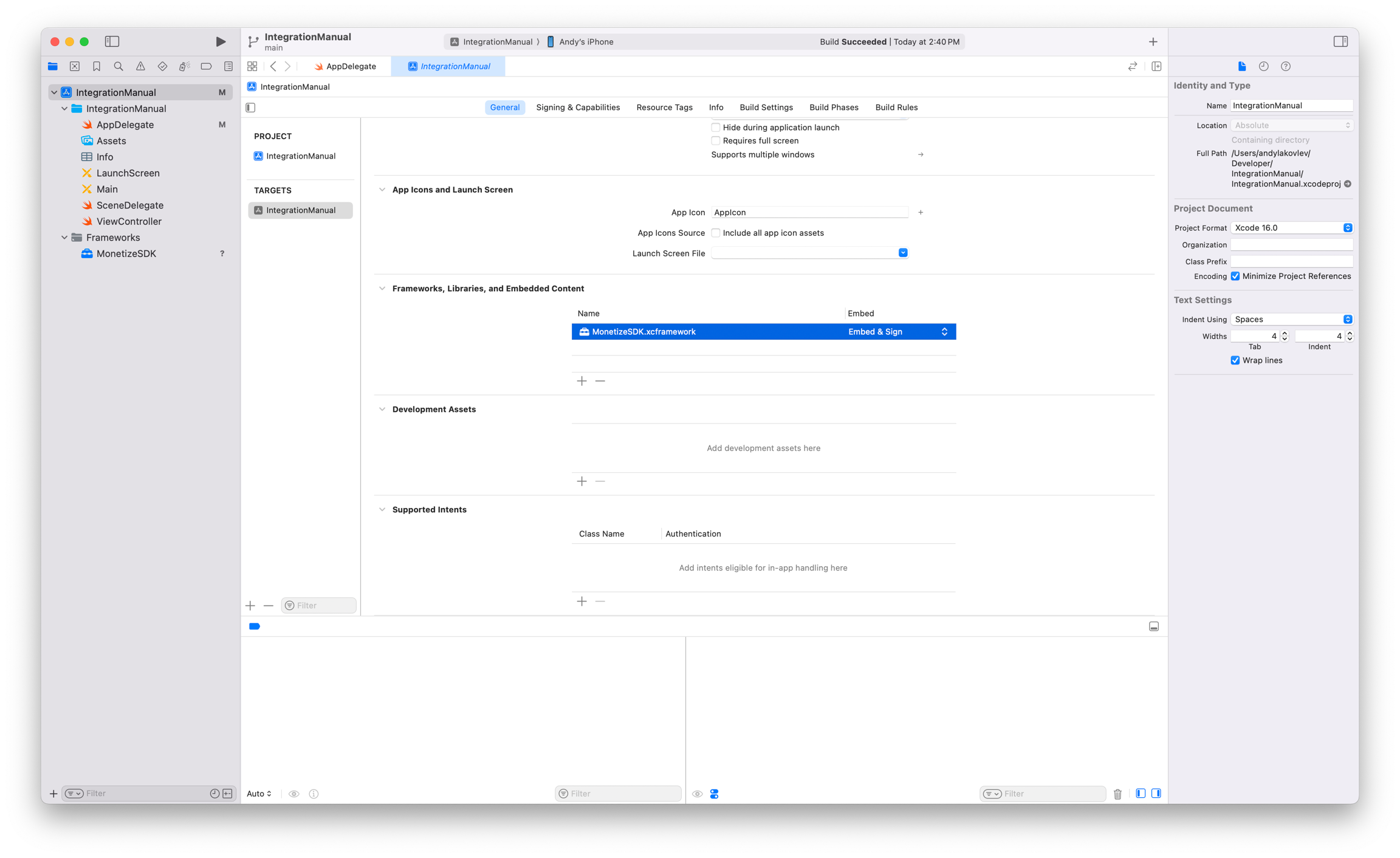
Add the Dependency

The Swift Package Managerarrow-up-right automates the distribution of Swift code. To use Playtime with SPM, add the dependency from https://github.com/adjoeio/adjoe-monetize-spm .

With Xcode

Go to File → Add Package Dependencies in the Menu Bar in Xcode. Search for `https://github.com/adjoeio/adjoe-monetize-spm and add it to your app's target.

Using Package.swift file

If your project uses Package.swift file, add Playtime as a dependency:

dependencies: [
  .package(url: "https://github.com/adjoeio/adjoe-monetize-spm", from: "4.2.0")
]

And then add the following product to any target that needs access to the library:

.product(name: "PlaytimeMonetize", package: "adjoe-monetize-spm")

Part 2: App Attest Integration

The Playtime SDK for iOS makes use of Apple's DeviceCheck APIsarrow-up-right to ensure that the app is launched on a real device and that there haven't been any malicious alterations. This allows us to better protect your app and your revenues.

To ensure that the SDK runs as expected, you must complete the following steps, even if the app builds normally. Failure to complete a step could cause the app to disfunction or be rejected from the App Store. You can read more about the App Attest service herearrow-up-right.

1

Enable App Attest

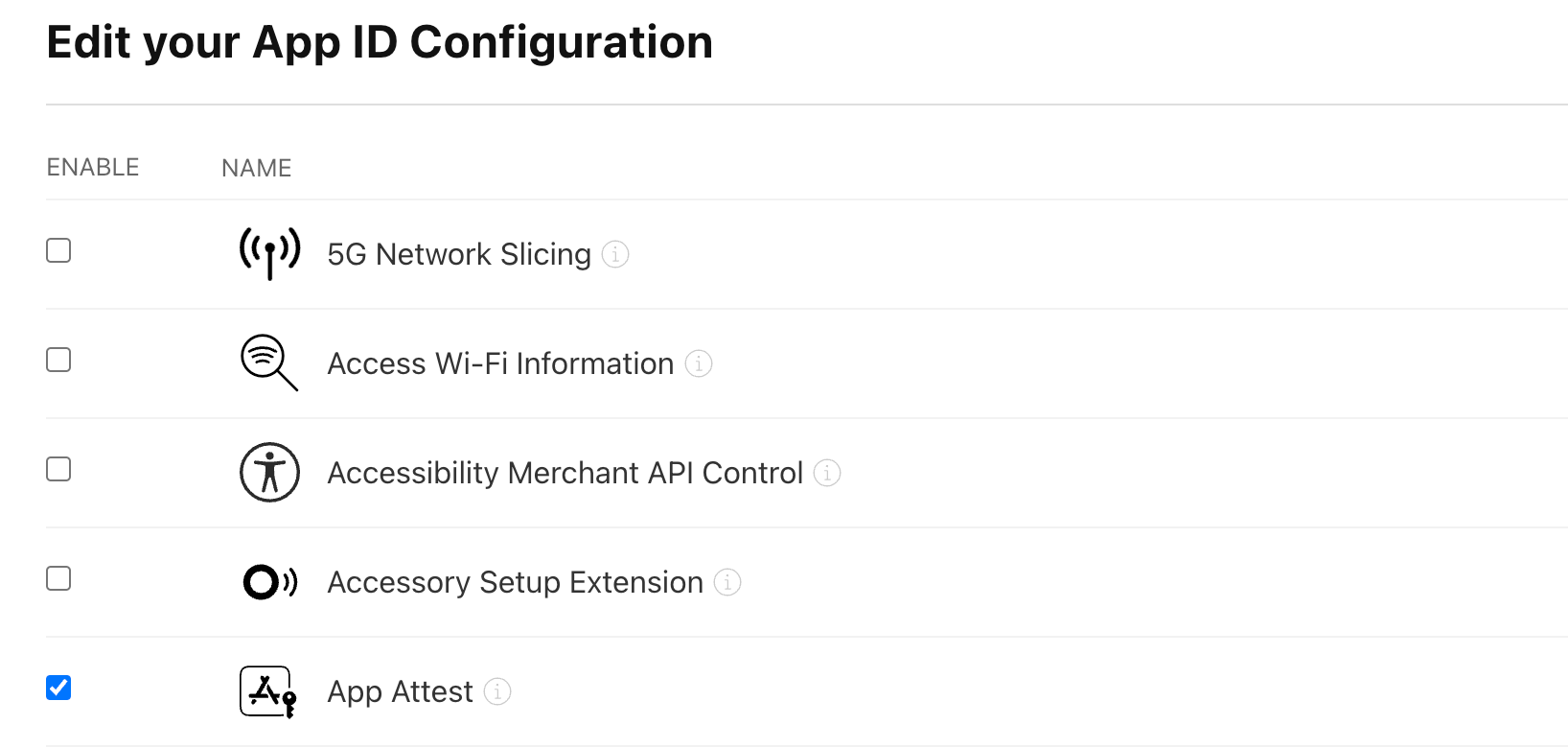
  1. Select your app ID

  2. Ensure App Attest is enabled under Capabilities

2

Add required capabilities

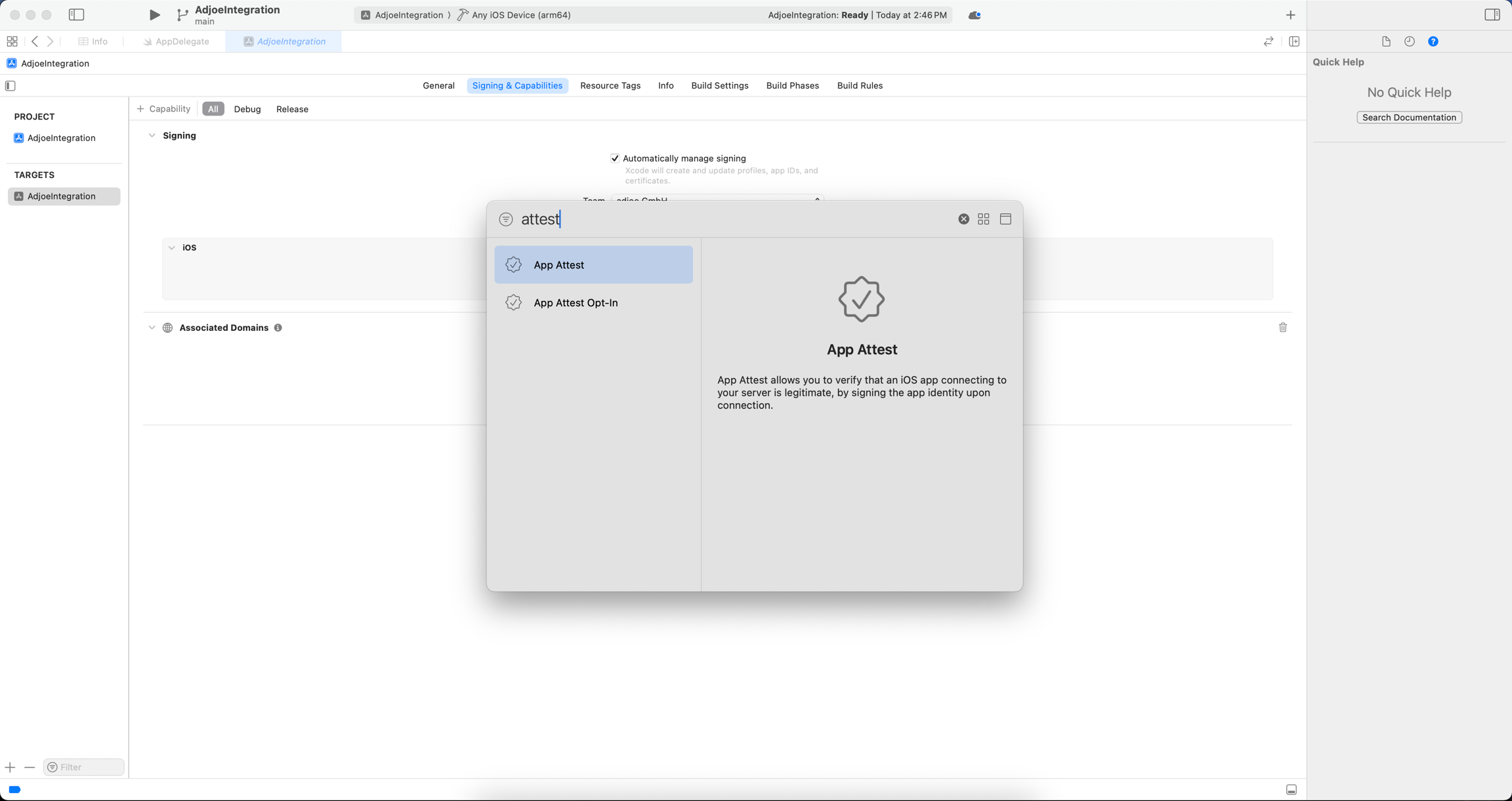
  1. Select the project of your application in the Project Navigator

  2. Select your target

  3. Go to the tab Signing & Capabilities

  4. Add the App Attest capability

3

Gather Credentials:

In order for adjoe's services to work with your app, the following credentials will need to be enabled for your app. They can be uploaded at the app-level in the Monetize Dashabord.

If you plan on using a dev and a prod environment, you will need to make sure distinct credentials are added for both app bundles, e.g., playtime.app.dev and playtime.app.

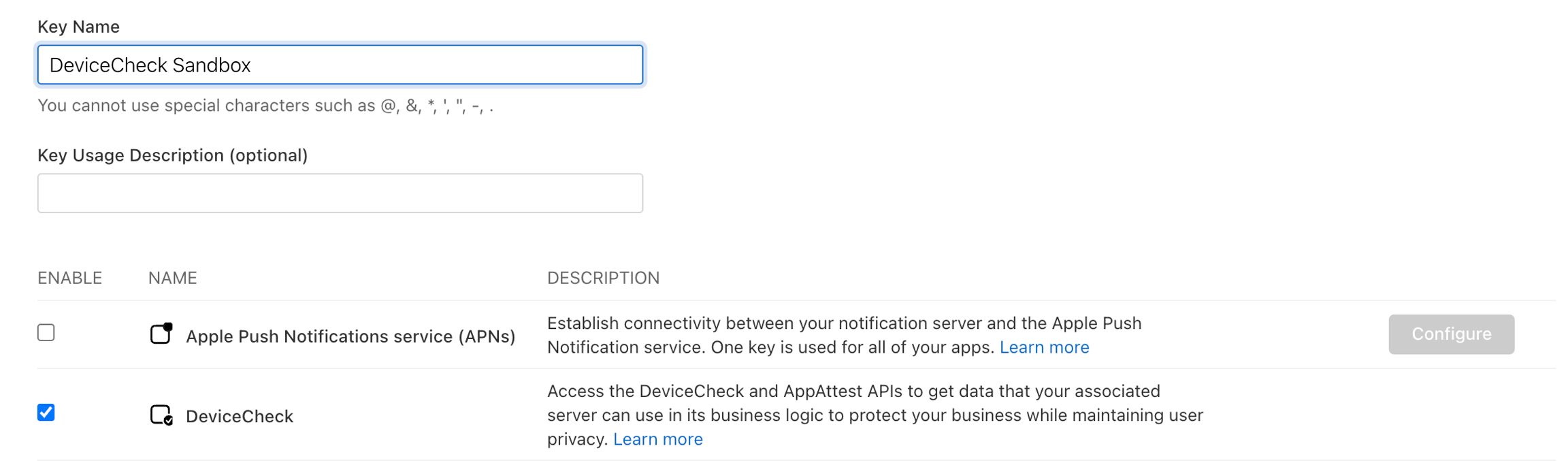
  1. Private Key: Generate a private key that can be used for the AppAttest service and provide the file with the .p8 extension to adjoe. You can find the instruction on how to get the .p8 herearrow-up-right. Only the DeviceCheck/AppAttest Service should be added.

  1. Key ID: Generate a key identifierarrow-up-right associated with the enabled service.

  2. Team ID: Provide the Team ID, which app ID prefix: Team ID and the Bundle ID separated with a dot, for example: M4CAP9HPPJ.com.my.app. You can learn more about the app ID herearrow-up-right.

Make sure that after you add the capability to your project, you can see the .entitlements file. Specify the production environment.

triangle-exclamation
4

Upload Credentials

Add the Credentials under Edit Application in the Monetize Dashboardarrow-up-right.

Part 3: Configure Environment

After adding the App Attest capability, you must configure your entitlements file to use the production environment. The adjoe backend only accepts production App Attest attestations.

Steps:

1

Locate your entitlements file

  • When you add the App Attest capability, Xcode automatically creates a .entitlements file in your project (e.g., YourApp.entitlements)

  • Find it in the Project Navigator

2

Set to production environment

  • Open the .entitlements file

  • Find the key: com.apple.developer.devicecheck.appattest-environment

  • Set the value to production (NOT development)

Your entitlements file should look like this:

<?xml version="1.0" encoding="UTF-8"?>
<!DOCTYPE plist PUBLIC "-//Apple//DTD PLIST 1.0//EN" "http://www.apple.com/DTDs/PropertyList-1.0.dtd">
<plist version="1.0">
<dict>
    <key>com.apple.developer.associated-domains</key>
    <array>
        <string>webcredentials:prod.adjoe.zone</string>
    </array>
    <key>com.apple.developer.devicecheck.appattest-environment</key>
    <string>production</string>
</dict>
</plist>
3

Verify build configurations

  • In Xcode, go to your Target → Build Settings

  • Search for "Code Signing Entitlements"

  • Ensure both Debug and Release configurations point to the same entitlements file with production set

Why production is required:

Unlike typical Apple services, the adjoe backend does not support development App Attest attestations

  • Both your development/testing builds and production builds must use the production environment

  • Using development will cause authentication failures with the error: "AAGUID not found in metadata"

circle-exclamation

Last updated